Perimeter policy
Categories:
Purpose: This document explains the purpose of a perimeter in Verily Workbench and how to create one.
Note
Perimeters are currently only available as a private preview in GCP data collections and not generally available. If you're interested in using perimeters for your workspaces, please reach out to your Workbench contact or Support.Introduction
What is a perimeter?
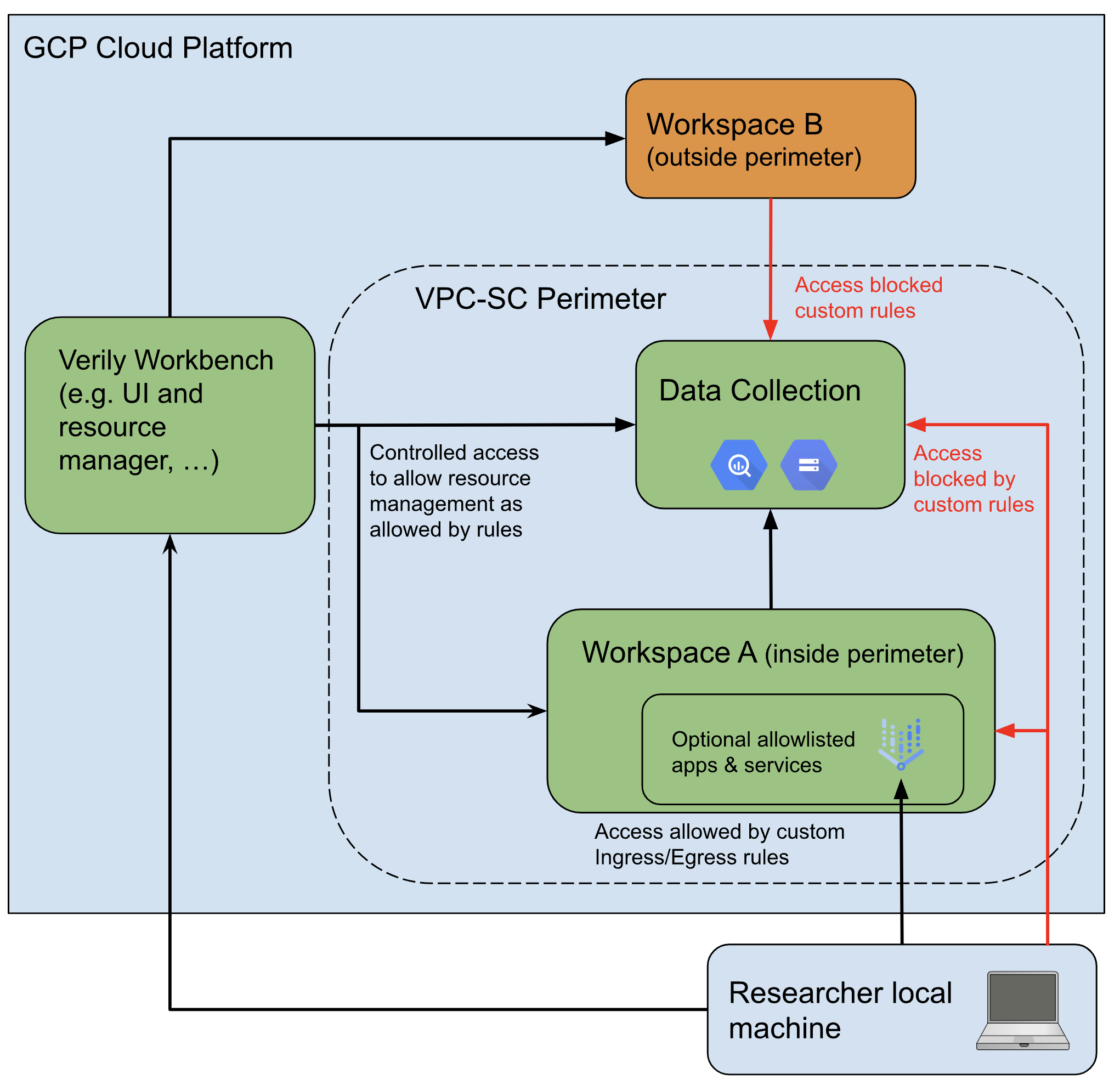
A Verily Workbench perimeter policy limits the data download/upload and transfer across the designated network boundaries. Individual perimeters can be changed to block or permit access to additional GCP services as needed. Workspaces may only ever be inside one perimeter at a time. Additionally, once enrolled, a workspace can never be removed from a perimeter, though it can still be deleted normally.
This is achieved by leveraging VPC Service Controls (VPC-SC) on GCP to restrict access to the desired resources. Once a workspace is enrolled in a perimeter, all of its resources—including Cloud Storage, BigQuery, Life Sciences APIs, and virtual machines—would be put in that perimeter. This can in turn restrict access to those resources only from within the perimeter. So for example, once a Cloud Storage bucket is in a VPC-SC perimeter, access to that bucket is only allowed from resources that also live inside the same perimeter (e.g., VMs inside the same perimeter).
Why enforce a perimeter?
A perimeter is an optional feature to help ensure your data does not leave the boundaries of Workbench. This can be helpful if you want to give researchers access to your data while still providing some safeguards to ensure they do not copy or export the data.
Perimeters can be combined with regional policies to enforce that data must stay in a particular geographic location. The region policy requires that the data stay in the specified region(s), while the perimeter prevents users from copying data out of these regions, including into unauthorized locations.
What restrictions does a perimeter enforce?
Note
Many of the below perimeter restrictions can be customized for individual perimeters. For further details on what you can customize, please reach out to workbench-support@verily.com or your primary Workbench contact.In general, a perimeter prevents the movement of data, either from inside the perimeter to outside (egress) or from outside the perimeter to inside (ingress). This can mean:
- Blocking access from a local machine: All direct access to data inside the perimeter
(including Cloud Storage buckets and
BigQuery datasets) from a user's local
machine will be blocked. This includes both the Workbench CLI (command-line interface) and
tools like
gcloud,gsutil, orbq. - Blocking access from cloud apps outside the perimeter: Access to resources in the perimeter, from apps in workspaces outside the perimeter, is also blocked. Only apps in workspaces inside the perimeter can access the data.
- Blocking access from the GCP Cloud console: The GCP Cloud console (including the Cloud Storage Browser and interactive BigQuery Studio) is considered "outside" any perimeter, and is always blocked from accessing data in the perimeter. As these underlying pages are blocked, the Workbench UI buttons for accessing them are disabled for workspaces inside a perimeter.
- Blocking copying data to a cloud resource outside the perimeter: Copying data directly from a
bucket or dataset inside the perimeter to one outside the perimeter (including via
gcloud,gsutil, orbq) is blocked.
Some restrictions also apply to workspace apps inside the perimeter, which are allowed to access the restricted data:
- Read-only access to data outside the perimeter: These apps have read-only access to Cloud Storage buckets and BigQuery datasets outside the perimeter. They can read data from buckets and datasets outside the perimeter, but cannot write any data to them.
- Move data between workspaces: The ability to move or copy data out of the perimeter via tools
like
gcloud,gsutil, orbqis blocked. However, you can still use these tools to move data between workspaces within the same perimeter.
Some of these restrictions can significantly disrupt normal workspace operations. For example:
- If you're using a controlled Cloud Storage bucket to share data across multiple workspaces and enroll the workspace hosting the bucket inside a perimeter, all other workspaces outside the perimeter will lose access to the bucket.
- If you're using an app to write data to a bucket in another workspace or outside of Workbench and enroll your workspace in a perimeter, that app will be blocked from writing data out to the external buckets.
Perimeter limitations
Perimeters are designed to detect and prevent high-volume exfiltration of data outside of your Workbench environment, like if someone downloads an entire dataset. However, they aren't airtight.
In order for users to interact with your data in some fashion, users need to be able to access it. Perimeters aren't effective at blocking or detecting egress of small volumes of critical data, such as encryption keys, summary statistics, or small amounts of raw data. This means it's still possible for researchers to slowly exfiltrate small amounts of data. For this kind of small, highly-sensitive data, the best protection is only sharing it with a small set of trusted users.
Additionally, some perimeter configurations may still leave some allowlisted egress paths:
- For example, while researchers may be blocked from downloading data directly from a Cloud Storage bucket to their local computer, they may still be able to first download data from Cloud Storage onto their cloud app, and then from the app onto their local machine. However, this activity is captured in egress logs.
- Researchers could also upload the data from an app in the perimeter, to a non-GCP location like an S3 bucket. However, this activity is also captured in egress logs.
Getting started
Create a new perimeter
Please reach out to workbench-support@verily.com or your primary Workbench contact for support in creating a perimeter policy.
Customers will need to work with the Workbench Support team to establish the right set of policies and rules for the perimeter that meet their needs and requirements. Parameters to be considered for these rules include limitation on downloads and uploads, as well as a set of cloud services they might want to allowlist for users to interact with data, as described in the previous section. If you also require egress traffic monitoring to be enabled for your perimeter, please include this request when contacting support for setup.
Exfiltration management
When setting up a new perimeter, you can request to block the following exfiltration paths:
-
Direct researcher data access from their local computer to the BigQuery and Cloud Storage buckets within the perimeter.
-
Rapid copies to other destinations on the same cloud platform, including:
-
Direct Cloud Storage and BigQuery copy across the perimeter boundary.
-
Writing into external Cloud Storage buckets and BigQuery datasets outside the perimeter from within the VMs.
-
-
Internet access within batch job virtual machines running workflows.
You can also have alerts set up for these two exfiltration paths:
-
Researcher access to approved apps from their computers which are outside the perimeter, e.g., a JupyterLab app configured to allow downloads.
-
Researcher access from VMs to the internet, allowing for potential data upload to other cloud destinations.
Workbench will monitor both of these paths. If a user exceeds the set egress threshold within a given timeframe, specific actions such as VM shutdowns, stakeholder notifications, and access suspension or termination could occur.
Ask Workbench support or your primary Workbench contact to assist with exfiltration management setup.
Apply a perimeter policy
Once a perimeter has been created, a perimeter policy can be applied to a data collection. This policy is generally applied upon creation of a new data collection, and our Workbench Support team will work with you through this. The same perimeter policy can be applied to multiple data collections. Only users with access to a particular perimeter can add that perimeter policy to a data collection.
When a user adds resources from a data collection to their workspace, the perimeter policy will also be associated with their workspace from then on.
Enroll workspaces into an existing perimeter
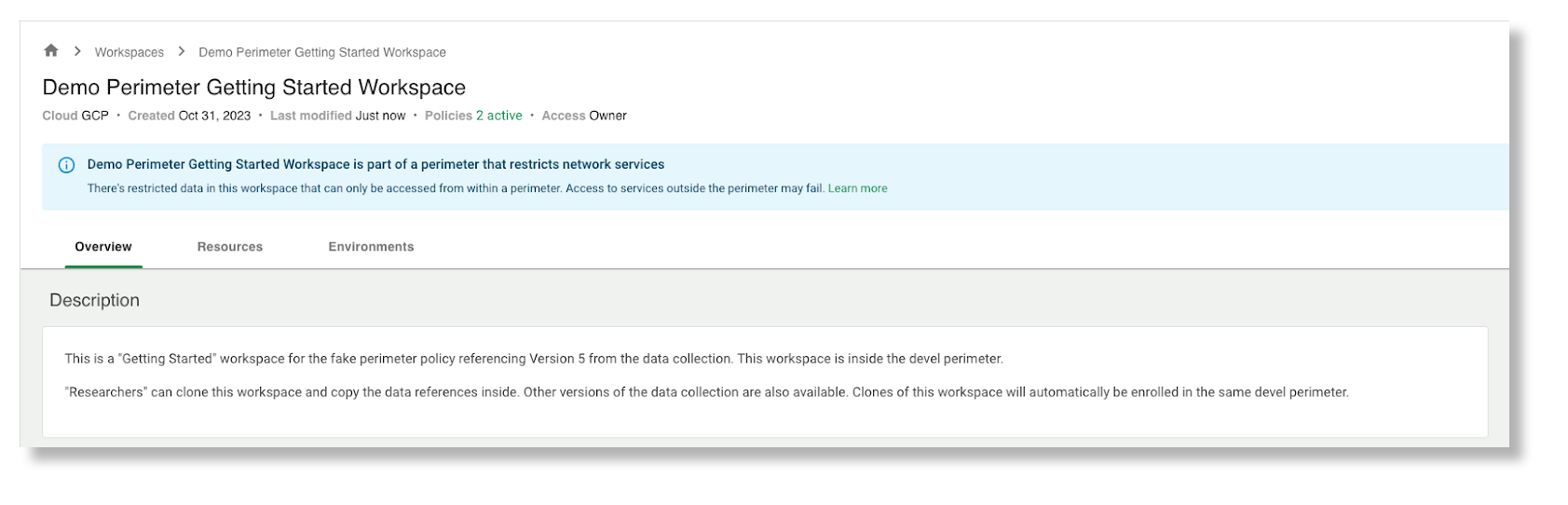
When you duplicate a workspace inside a perimeter, Workbench will automatically enroll your newly-created workspace inside the same perimeter. Likewise, when you add a data collection which is inside a perimeter to your workspace, Workbench will automatically enroll your workspace inside the perimeter.
Workspaces enrolled in a perimeter will have a banner indicating they have additional restrictions:
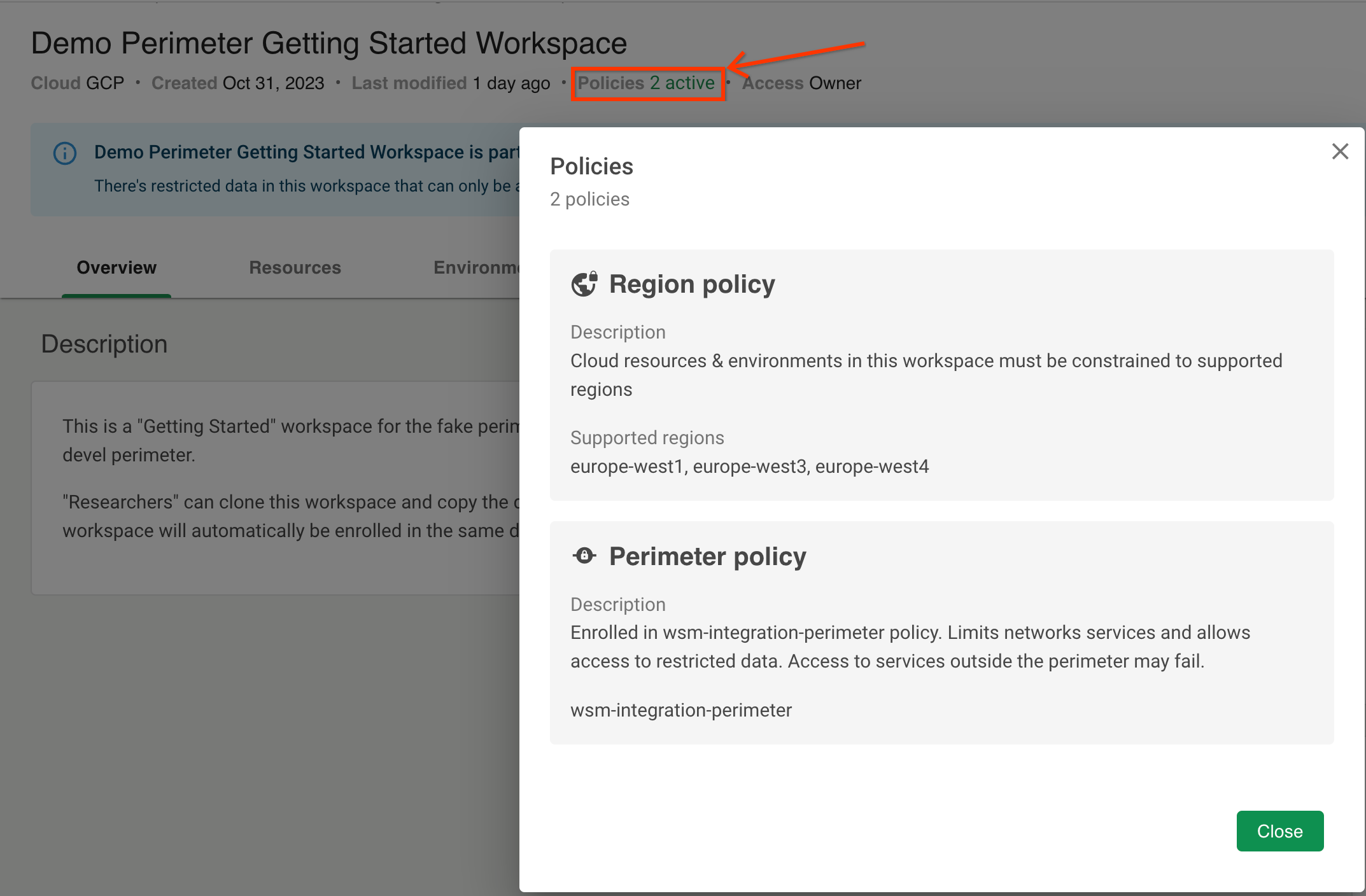
You can find more information about the perimeter your workspace is enrolled in by clicking the "Policies" link near your workspace name:
Inside these workspaces, access to the GCP Cloud console (including the Cloud Storage Browser and BigQuery Studio) remains disabled. However, your perimeter administrator may enable bucket browsing through the Workbench UI, allowing you to browse files and preview certain file contents directly from the Resources tab.
When bucket browsing is enabled for your perimeter:
- You can click the Browse button on a Cloud Storage bucket to view its files and folder structure.
- You can preview supported file types, subject to any size limits or file type restrictions
configured by your perimeter administrator. For example, your perimeter may restrict previews to
analysis files (such as
.ipynb,.py,.r,.rmd,.qmd) under a certain size (e.g., 5 MB). See Browse buckets and preview file contents for the full list of supported file types. - File download remains disabled. You can only view and preview files, not download them to your local machine.
- The Open in GCP button remains disabled because the GCP Cloud console is outside the perimeter.
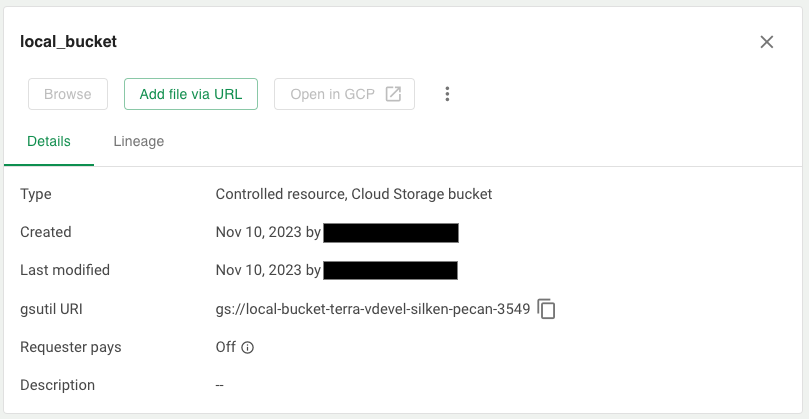
When bucket browsing is disabled (the default), the Browse button is disabled:
Note
If you need bucket browsing enabled for your perimeter, contact your perimeter administrator or workbench-support@verily.com. Administrators can configure which file types can be previewed and set maximum file size limits for previews.Workspaces may not be removed from a perimeter
Workspaces can never be removed from a perimeter. This prevents someone from removing a workspace from a perimeter while it still contains restricted data, or anything derived from restricted data.
Last Modified: 16 March 2026