Get started with Nextflow on Verily Workbench
Categories:
Prior reading: Workflows in Verily Workbench: Cromwell, dsub, and Nextflow
Purpose: This document provides detailed instructions for configuring and running Nextflow pipelines in Verily Workbench.
Introduction
Nextflow is a framework for creating data-driven computational pipelines, as well as scalable and reproducible scientific workflows using software containers.
Workbench supports Nextflow workflows running on Google Cloud Platform (GCP) Batch. Users can use either the Workbench web UI or Workbench CLI to create and run Nextflow workflows.
Step-by-step guide
Prerequisites
You'll need the following to complete the steps below:
- A GCP-backed workspace
- A Nextflow workflow source file (.nf) that either lives in a GCP bucket in your workspace or in a Git repository
- A GCP bucket in your workspace for workflow outputs
In addition, it's highly recommended to have a nextflow.config file within the same folder as the
Nextflow workflow source file.
If you intend to use a nf-core pipeline, it's highly recommended to create an Artifact Registry repository. Please see Other considerations below for more details.
1. Create a Nextflow workflow
Note
To use a workflow source file that lives in a Git repository, you must create your workflow via the Workbench web UI.
In your workspace, select the Workflows tab. Click Add your first workflow to open the Adding workflow dialog.
Indicate where your workflow source is located and select Nextflow for workflow type.
If your workflow source is in a workspace bucket:
- Select the appropriate bucket name from the dropdown.
- Indicate whether the Nextflow source is a single .nf file or in a folder with main.nf.
- Select the relevant workflow file. Click Next.
If your workflow source is in a Git repository:
- Enter the full Git repository URL (exclude the .git extension).
- Select the reference type by branch name or tag. Workbench will find workflows. Select the one you want to add. Click Next.
Note
You may be prompted to link your GitHub account to Workbench. Click Go to accounts to link your GitHub account on your Workbench profile.Use the wb workflow create command to create
a Nextflow workflow:
wb workflow create \
--workflow <YOUR_WORKFLOW_NAME> \
--workflow-type NEXTFLOW \
--bucket-id <NEXTFLOW_BUCKET_NAME> \
--path <NEXTFLOW_BUCKET_PATH>
To use this command, your workflow source file must live in a GCP bucket in your workspace.
2. Create a new job
Once you've created a workflow, you can start running jobs.
Select your workflow and click + New job to open the Creating new job dialog.
On the Enter job details screen, you can add a Nextflow profile. Profiles are sets of
configurations that contain parameters that are used at runtime. Profiles are defined in
nextflow.config files within the profiles block. Click Next.

The second screen lets you set up parameters. You can select a JSON or YAML file with workflow parameters. This file must live in a GCP bucket in your workspace. Click Next.

On the Set up outputs screen, select a GCP bucket for your job outputs. A folder name will be auto-generated, but you can update it to a different name. Click Submit job.
You'll be taken to the Job status page where you can select the job you just created and see its details.
Use the wb workflow job run command to
start a job.
The example below defines a params file and profile, which are optional values.
wb workflow job run \
--workflow <WORKFLOW_ID_GIVEN_FROM_ABOVE> \
--job-id <ANY_NAME_FOR_THE_JOB> \
--output-bucket-id <BUKCET_FOR_NEXTFLOW_OUTPUT> \
--output-path <PATH_OF_NEXTFLOW_OUTPUT> \
--params-file-bucket-id <BUCKET_OF_PARAM_FILE> \
--params-file-path <PATH_TO_PARAMS_FILE> \
--profile <PROFILE_FROM_NEXTFLOW.CONFIG>
3. Monitor your job
Once you've started your job, you can track its progress and view its outputs.
From the Job status tab, click on your job to open its Tasks page, which lists every task in the job.
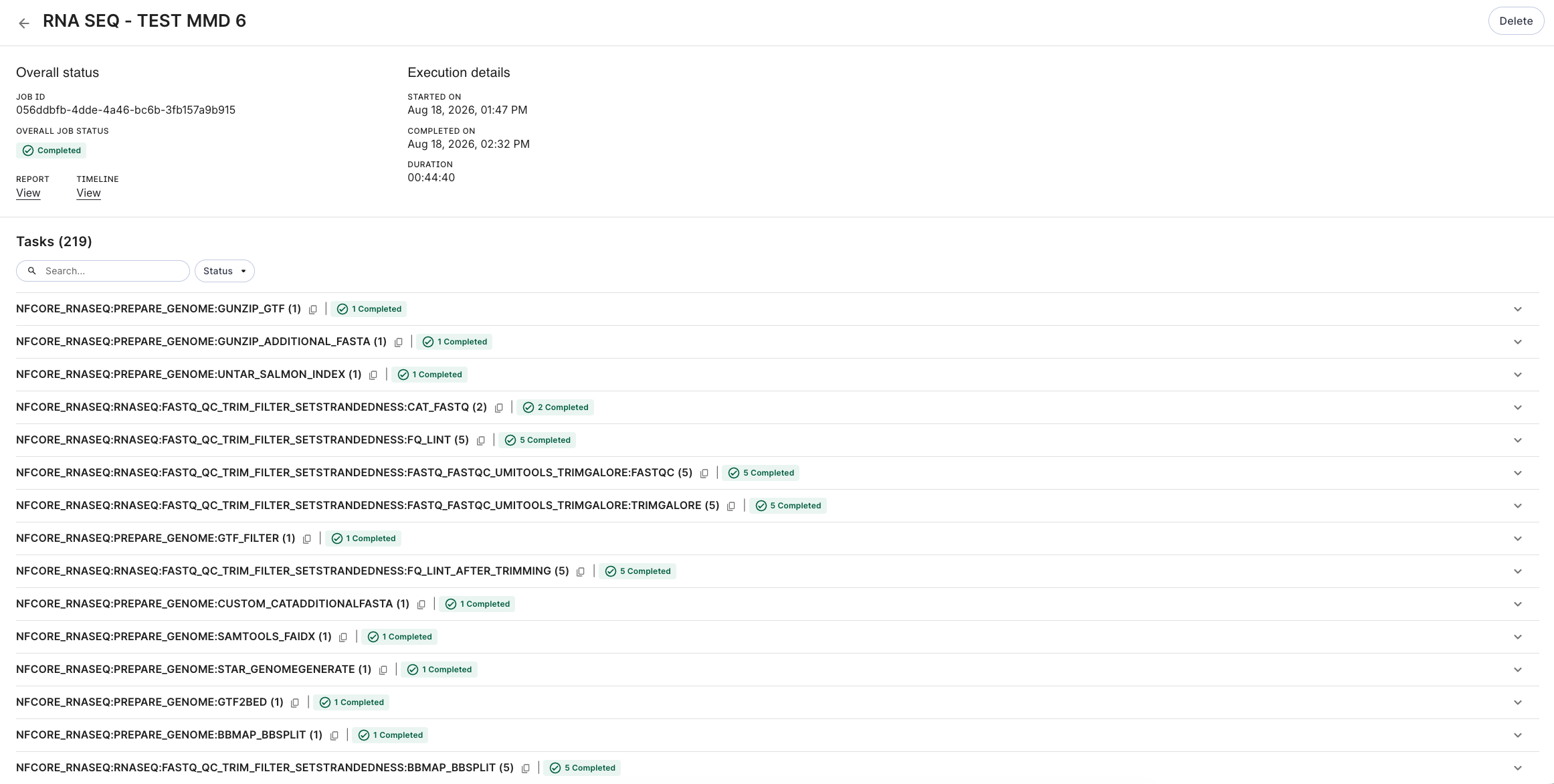
Each task shows a status chip. You can filter the task list by status:
- Pending – queued, not yet started
- Starting – picked up and initializing
- Running – currently executing
- Completed – finished successfully
- Failed – exited with an error
- Skipped – not run, e.g., due to a
whencondition - Cancelled – stopped by a user (via Abort)
- Deleted – removed from the underlying engine
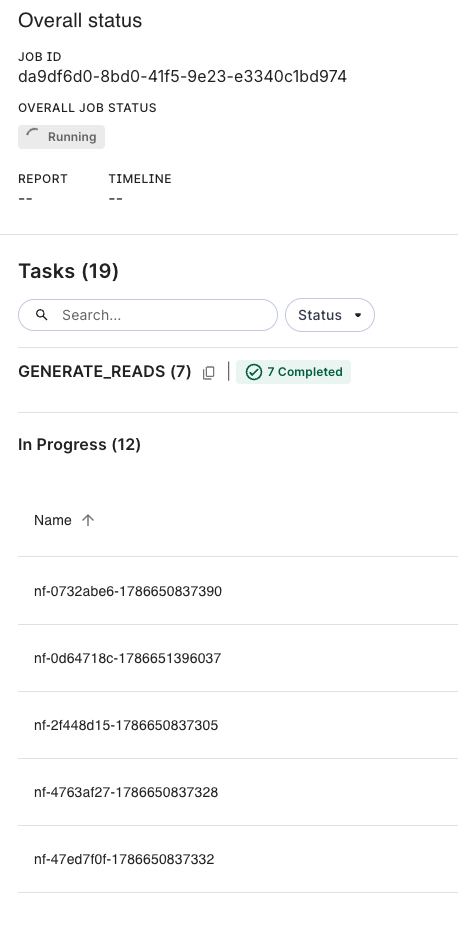
Tasks that are still in progress and can't yet be matched to a specific pipeline step are grouped under an In Progress heading. Once the job finishes, any remaining unmatched tasks are grouped under Ungrouped instead.
If a task's status is Failed, hover over its status chip to see a tooltip suggesting you check the Nextflow logs for more information.
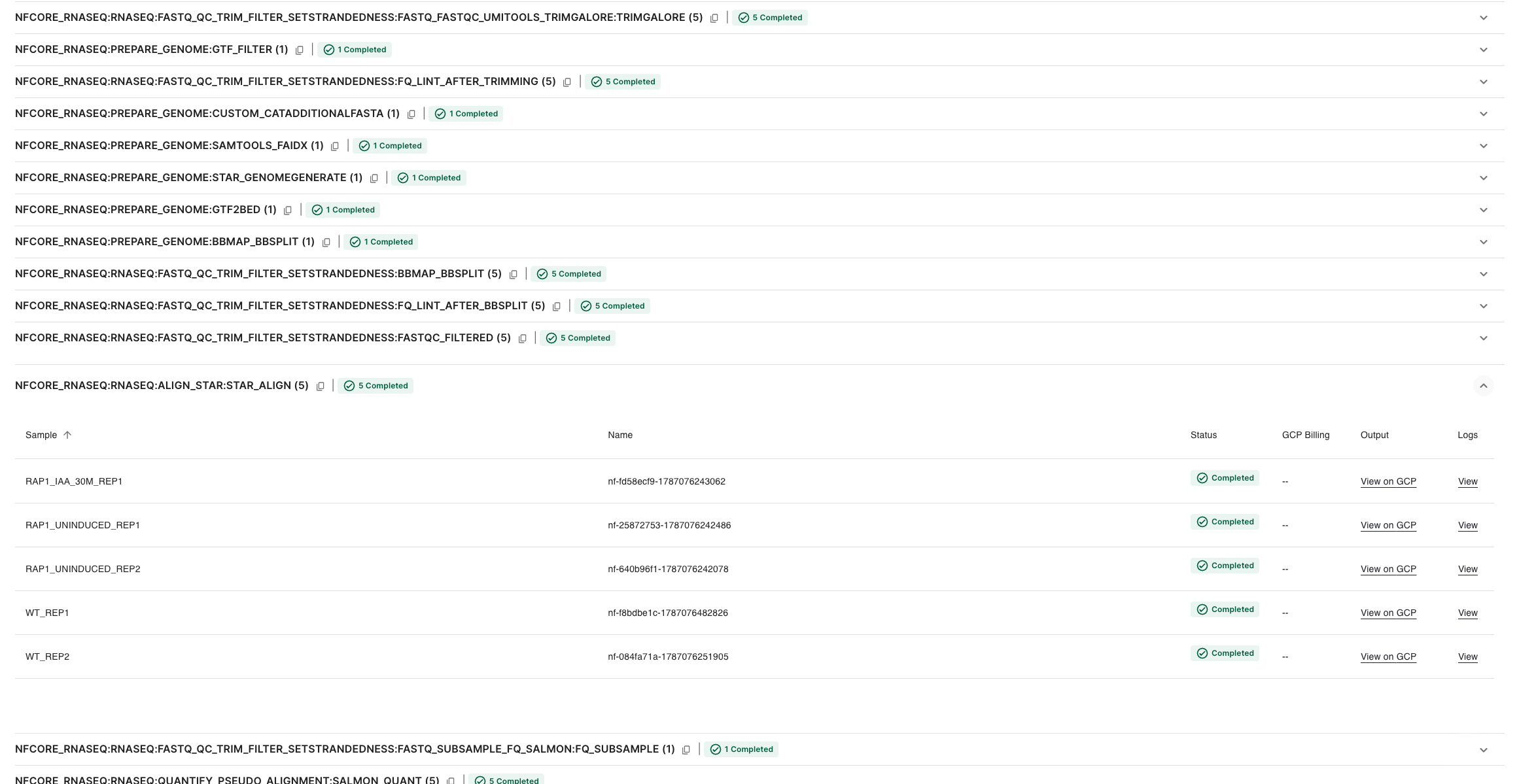
For each task, click View under Logs to see its log output, or View on GCP under Output to browse its output files in the Google Cloud console.
When you run wb workflow job run, you'll see output that includes a job ID, display name, and
status.
Run wb workflow job describe with your job ID to get additional information about your job.
Run wb workflow job task list with your job ID to get a list of grouped per process tasks.
To view outputs and logs, use the Workbench web UI or Google Cloud console.
Video walkthrough
This video shows how to create a Nextflow workflow using a main.nf workflow source file from a
GitHub repository. This repository also includes a nextflow.config file that has a profile called
test_full_gcp. We also use a params file in a GCP bucket called nextflow_resources in the
workspace.
Other considerations
By default, nf-core pipelines use quay.io for the container registry. Workbench strongly
recommends using Artifact Registry instead.
Follow the steps in Create an Artifact Registry
repository. Once
the repository is created, you can use the repository's full URL as the .registry values in your
nextflow.config file. The URL should look something like this:
us-central1-docker.pkg.dev/${GOOGLE_CLOUD_PROJECT}/${GOOGLE_ARTIFACT_REPO}/amrplusplus-workbench:latest
You can then add that to the nextflow.config file, as shown below:
// Set to your registry if you have a mirror of containers
apptainer.registry    = 'us-central1-docker.pkg.dev/${GOOGLE_CLOUD_PROJECT}/${GOOGLE_ARTIFACT_REPO}/amrplusplus-workbench:latest'
docker.registry       = 'us-central1-docker.pkg.dev/${GOOGLE_CLOUD_PROJECT}/${GOOGLE_ARTIFACT_REPO}/amrplusplus-workbench:latest'
podman.registry       = 'us-central1-docker.pkg.dev/${GOOGLE_CLOUD_PROJECT}/${GOOGLE_ARTIFACT_REPO}/amrplusplus-workbench:latest'
singularity.registry  = 'us-central1-docker.pkg.dev/${GOOGLE_CLOUD_PROJECT}/${GOOGLE_ARTIFACT_REPO}/amrplusplus-workbench:latest'
charliecloud.registry = 'us-central1-docker.pkg.dev/${GOOGLE_CLOUD_PROJECT}/${GOOGLE_ARTIFACT_REPO}/amrplusplus-workbench:latest'
If you're utilizing profiles in your nextflow.config, you can also define a process.container
that points to your Artifact Registry repository URL:
profiles {
  'google-batch' {
    includeConfig "config/google_batch_resources.config"

    process.executor = 'google-batch'
    process.container = "us-central1-docker.pkg.dev/${GOOGLE_CLOUD_PROJECT}/${GOOGLE_ARTIFACT_REPO}/amrplusplus-workbench:latest"
  }
}
Troubleshooting
Issues when running large samples
You might see disk space issues and errors if running large samples in GCP. If a task hangs
indefinitely and restarting the job does not fix the issue, we recommend making the following
modifications to your nextflow.config file:
process {
    cpus   = { 1      * task.attempt }
    memory = { 6.GB   * task.attempt }
    time   = { 4.h    * task.attempt }
    disk   = { 20.GB  * task.attempt }

    errorStrategy = { task.exitStatus in ((130..145) + 104 + (175..177)) ? 'retry' : 'finish' }
    maxRetries    = 1
    maxErrors     = '-1'

    withLabel:process_single {
        cpus   = { 1                   }
        memory = { 6.GB  * task.attempt }
        time   = { 4.h   * task.attempt }
        disk   = { 20.GB * task.attempt }
    }
    withLabel:process_low {
        cpus   = { 2     * task.attempt }
        memory = { 12.GB * task.attempt }
        time   = { 4.h   * task.attempt }
        disk   = { 20.GB * task.attempt }
    }
    withLabel:process_medium {
        cpus   = { 6     * task.attempt }
        memory = { 36.GB * task.attempt }
        time   = { 8.h   * task.attempt }
        disk   = { 40.GB * task.attempt }
    }
    withLabel:process_high {
        cpus   = { 12    * task.attempt }
        memory = { 72.GB * task.attempt }
        time   = { 16.h  * task.attempt }
        disk   = { 100.GB * task.attempt }
    }
    withLabel:process_high_memory {
        memory = { 200.GB * task.attempt }
        disk   = { 200.GB * task.attempt }
    }
}
Issues previewing HTML files
If you're trying to preview an HTML file that references images in other folders (e.g., a MultiQC report), you'll need to click Open in GCP. Select the HTML file in the GCP console to preview it.
Last Modified: 20 August 2026