Manage access to data collections
Categories:
Prior reading: Create a data collection in the Workbench web UI
Purpose: This document explains how to share and manage a data collection using appropriate roles.
Share your data collection with collaborators
Once you've created a data collection, you can invite collaborators to edit it.
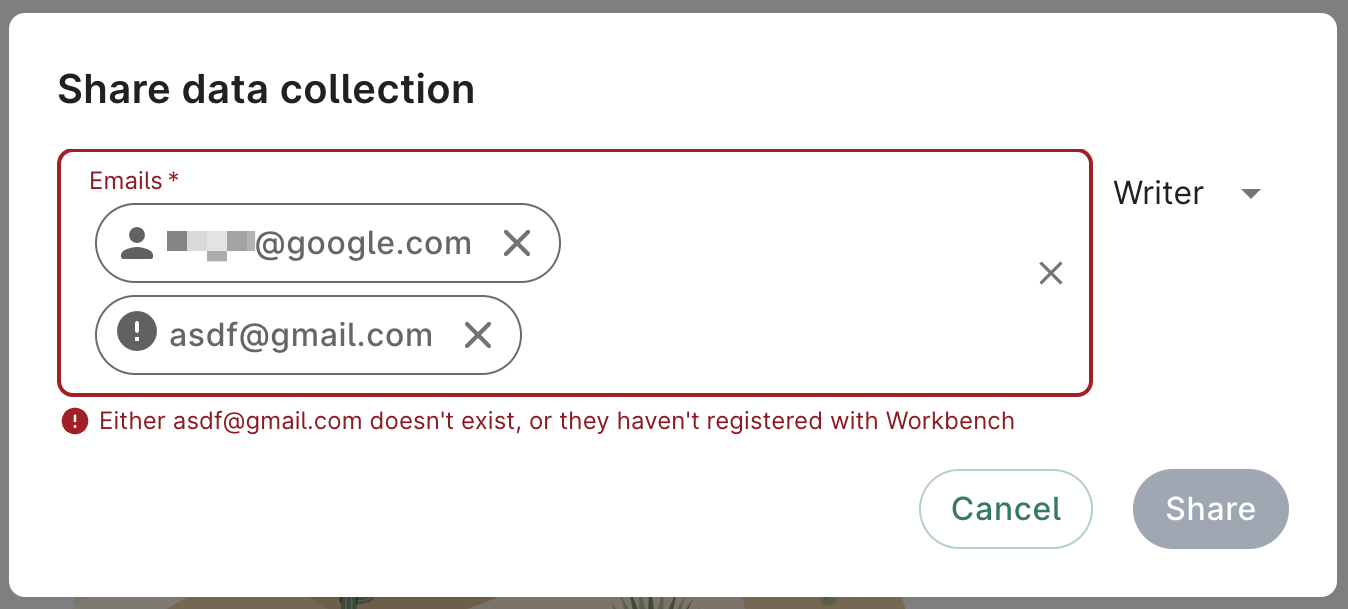
Click the three-dot icon in the upper right corner of your data collection page and select Share. A dialog will prompt you to enter the email address of the user you want to share your data collection with. Select whether they should have Writer or Owner permissions. Click Add and then click the Confirm button.
Note
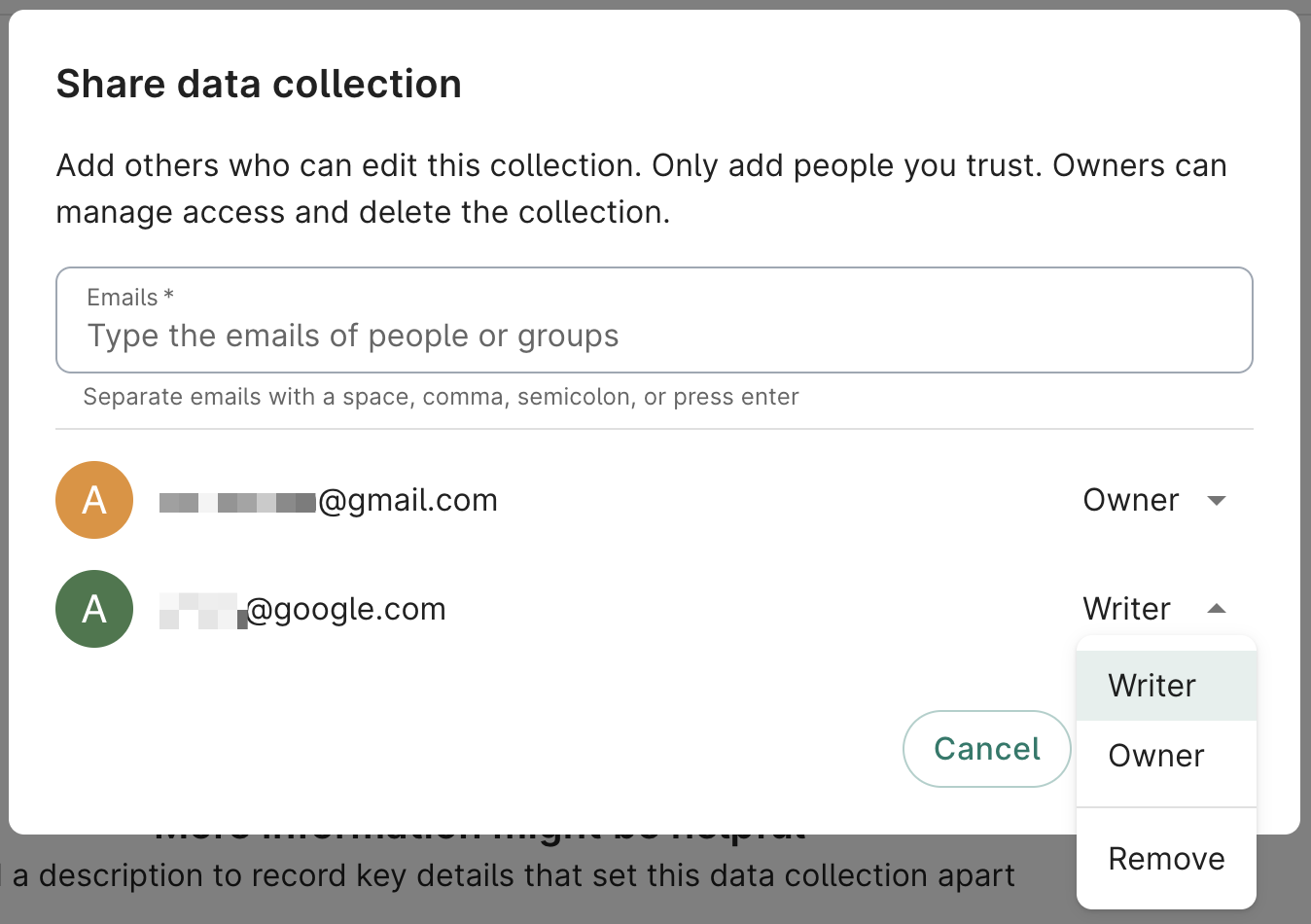
Only invite collaborators you trust since they will have editing rights in the data collection.After you invite a collaborator, you can change their access level or remove them as a collaborator by using the dropdown options. Click the three-dot icon in the upper right corner of your data collection page and select Share to view collaborators and update their access.
Manage researcher access to your data collection
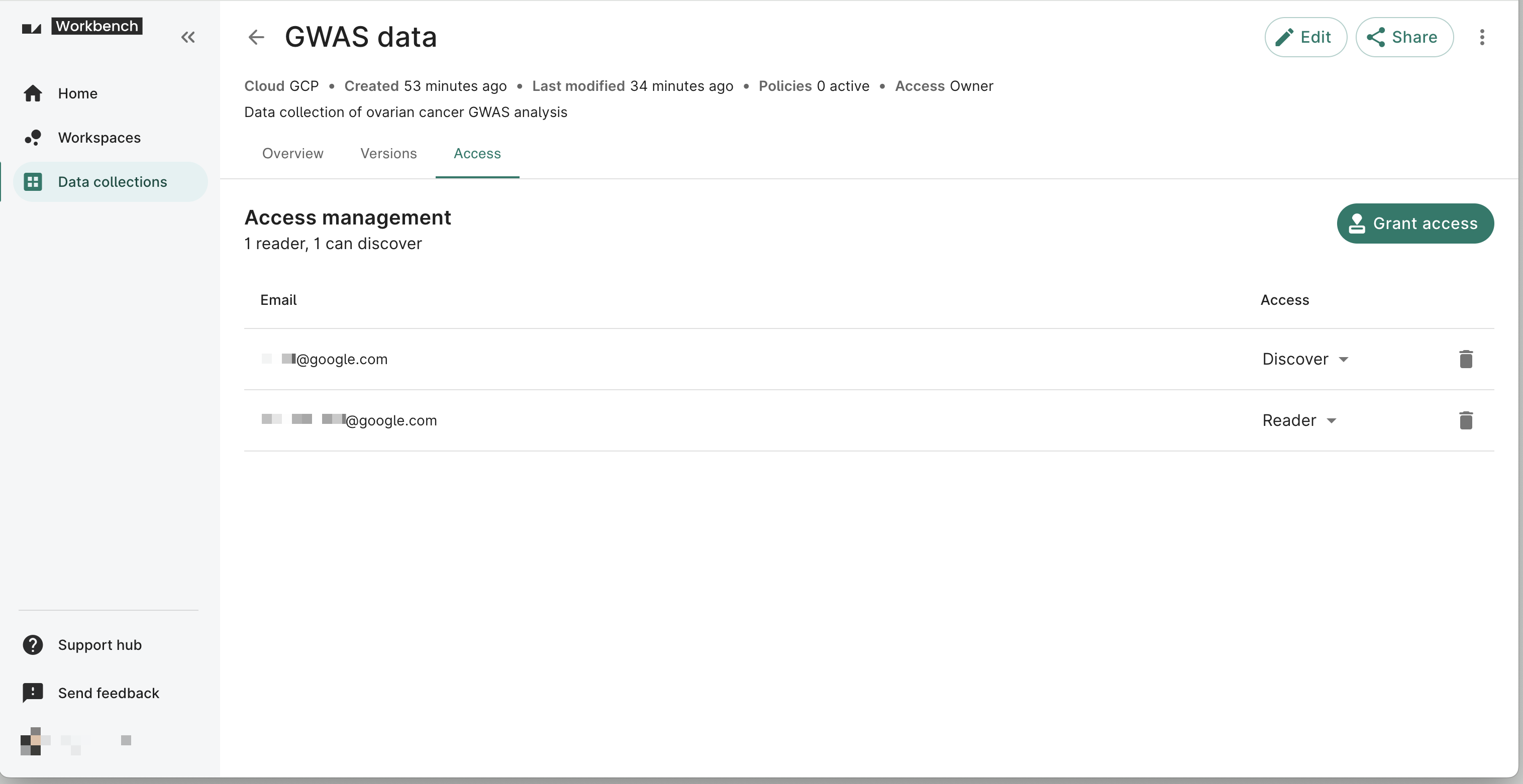
To make your data collection visible to other researchers, you can grant Reader or Discover access. Readers can view resources and add them to their workspaces, while Discover users can only see collection metadata.
Click the Access tab in your data collection to see a list of users who can read and discover your data collection. You can also change a researcher’s access level via the dropdown or remove their access by clicking the trash can icon.
Click the Grant access button to enter the email addresses of users you want to grant access to. You’ll see an error if the email address doesn’t belong to a registered Workbench user. As a reminder, if you added a group policy to your data collection, only users in this group will see the data collection. Select whether the user should be granted Reader or Discover access. Click Apply.
Note
If you downgrade a user from Reader to Discover access, you'll be prompted to acknowledge that the user will immediately lose access to any data references they added. See Data collection roles and access for more details.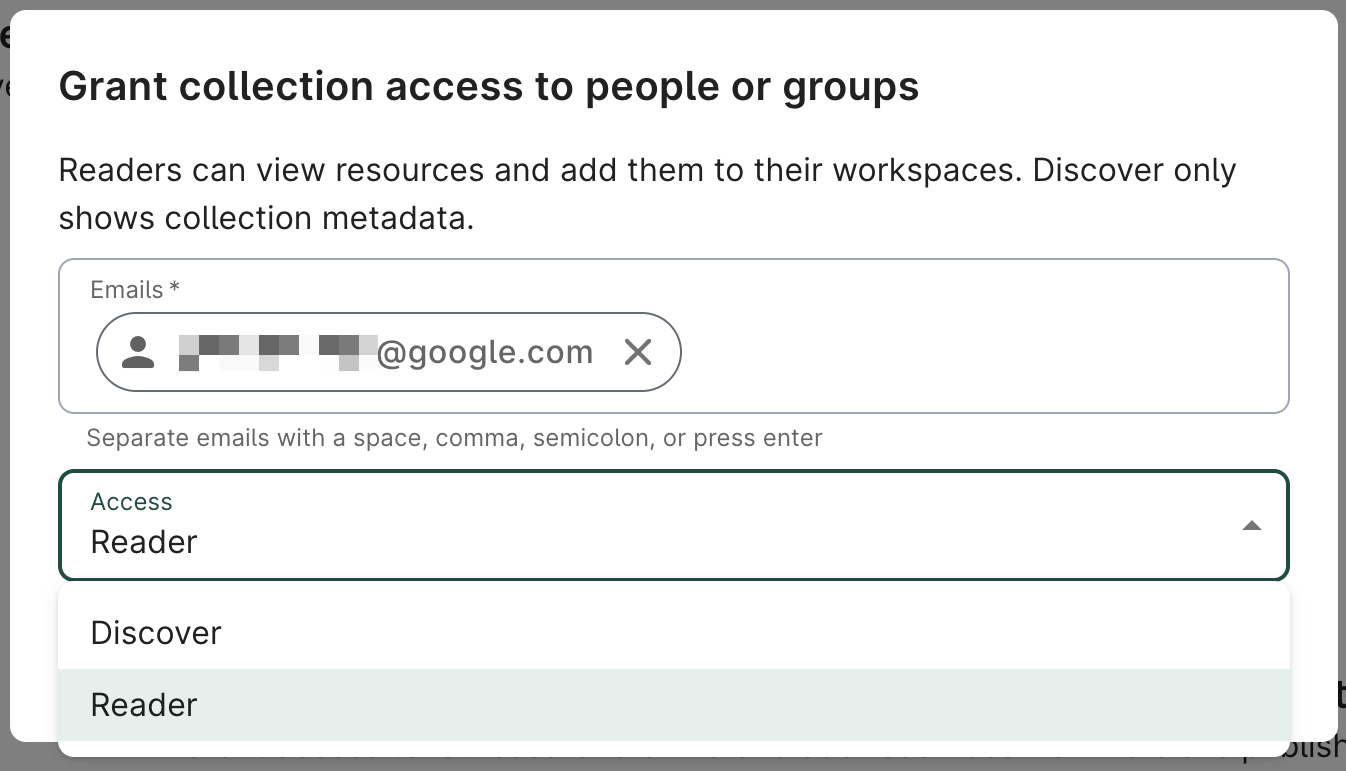
Note
You must be the owner of a data collection to see the list of Reader and Discover users and manage their access.Enable version binding
Version binding is a data collection setting that helps maintain data consistency by preventing users from mixing resources from different versions of the same data collection within a single workspace. When enabled, users who add resources from your data collection to their workspace must continue using the same version for all future resource additions from that data collection. Additionally, version binding encourages users to select the latest version when possible, ensuring they work with the most current data.
Be aware
Version binding is a best-effort feature designed to encourage data consistency. It is not an official policy or guarantee. Users are ultimately responsible for maintaining version consistency in their workspaces.Enable version binding when creating a data collection
When you create a data collection, you can enable version binding by selecting the Enable version binding checkbox in the Provide version details step. This setting controls whether users can mix resources from different versions of your data collection in their workspaces.

Change the version binding setting
You can change the version binding setting after creating a data collection by editing the data collection and toggling off the Enable version binding checkbox. Click the three-dot icon in the upper right corner of your data collection page and select Edit. Tick/untick the Enable version binding checkbox.
Note
If version binding was not enabled from the start, it's possible a workspace already has resources from multiple versions. In this case, the system will lock to the most recent version.How version binding affects users
When users add resources from a data collection with version binding enabled to their workspace:
- First time adding resources: Users are encouraged to use the latest published version. They can select an older version if needed (for example, to replicate a previous study), but they'll be prompted to confirm their choice.
- Subsequent additions: Users must continue adding resources from the same version they initially selected. The version selector will be locked to maintain data consistency.
- Using a different version: If users need to work with a different version, they should duplicate their workspace. During duplication, they'll have the opportunity to select a new version.
Note
Version binding only affects how users add resources to their workspaces. It doesn't change existing permissions or access levels.Select a default version
A data collection's default version is the version that users are recommended to use when adding resources to their workspaces.
To select a default version, click the three-dot menu in the upper right of a data collection and select Edit. Find the Default version section and click the dropdown to select a version to use as the default.
When a default version is used with version binding, users who attempt to add resources from a non-default version will be prompted with a confirmation dialog encouraging them to use the default version instead.
Data collection roles and access
This table outlines the four types of data collection user roles and the actions available.
| Discover | Reader | Writer | Owner | |
|---|---|---|---|---|
| View data collection’s metadata | Yes | Yes | Yes | Yes |
| Access data in collection | No | Yes | Yes | Yes |
| Add data collection to workspace | No | Yes | Yes | Yes |
| View data collection’s versions | No | Yes | Yes | Yes |
| View data collection resources | No | Yes | Yes | Yes |
| Explore cohorts | No | Yes | Yes | Yes |
| Add data collection resources to workspace | No | Yes | Yes | Yes |
| Modify data collection | No | No | Yes* | Yes |
| Share data collection | No | No | No | Yes |
| Delete data collection | No | No | No | Yes |
| View readers and discoverers of data collection | No | No | No | Yes |
* Writers can only modify certain aspects of a data collection. For example, they cannot update the group policy on a data collection; only owners have that ability.
Last Modified: 7 January 2026