Access, browse, save, and share data
Categories:
Prior reading: Data resource operations
Purpose: This document describes ways you can access, browse, save, and share data in your Workbench workspace.
Introduction
Verily Workbench provides a variety of features to browse and interact with data in your workspace. It's also critical to be able to bring process files and research results from your compute environment (whether that's your laptop machine, a Jupyter Notebook in the cloud, or a compute node running a workflow task) back to the shared storage space in your workspace. This document provides details for accessing, browsing, saving, and sharing your data.
Access and browse data
Depending on your role in a project, you may be interested in browsing reference data, incorporating data resources into a Jupyter Notebook or Nextflow script for analysis, or viewing data files and results. The subsections below will help you get started on these activities.
Locate data
All data resources in your workspace have an underlying cloud-based location, such as the gs://
URLs for Google Cloud Storage buckets. It's often useful to pass these global identifiers on to
other cloud-native tools or systems.
To locate a data resource via the Workbench web UI or Workbench CLI:
1. Click on the data resource to show its details on the right side of the screen.
1. Find the underlying cloud location in the gsutil URI row in GCP-backed workspaces or the S3 URI row in AWS-backed workspaces.
Note
Some cloud resources show a link next to the cloud location. Click this link to open the resource in the cloud-native file or database browser, if your workspace policy allows.-
Use the
wb resource listcommand to list resources in your workspace. Find the name of the data resource of interest:$ wb resource list NAME RESOURCE TYPE STEWARDSHIP TYPE DESCRIPTION 1000-genomes-example-notebooks GIT_REPO REFERENCED (unset) bam-folder GCS_OBJECT REFERENCED (unset) code GIT_REPO REFERENCED (unset) cram-folder GCS_OBJECT REFERENCED (unset) -
Use the
wb resource resolvecommand to print the underlying cloud location:$ wb resource resolve --id=bam-folder gs://genomics-public-data/ftp-trace.ncbi.nih.gov
You can also locate a data resource using your JupyterLab cloud app:
-
Open a Python notebook and use the shell magic prefix
!to invoke the Workbench CLI (command-line interface) to resolve a data reference:
-
You can assign the resolved location to a Python variable and use it later in your analysis, or pass the location to cloud-native tools. The example below demonstrates using the
gsutil lscommand to list files within a Google Cloud Storage data reference: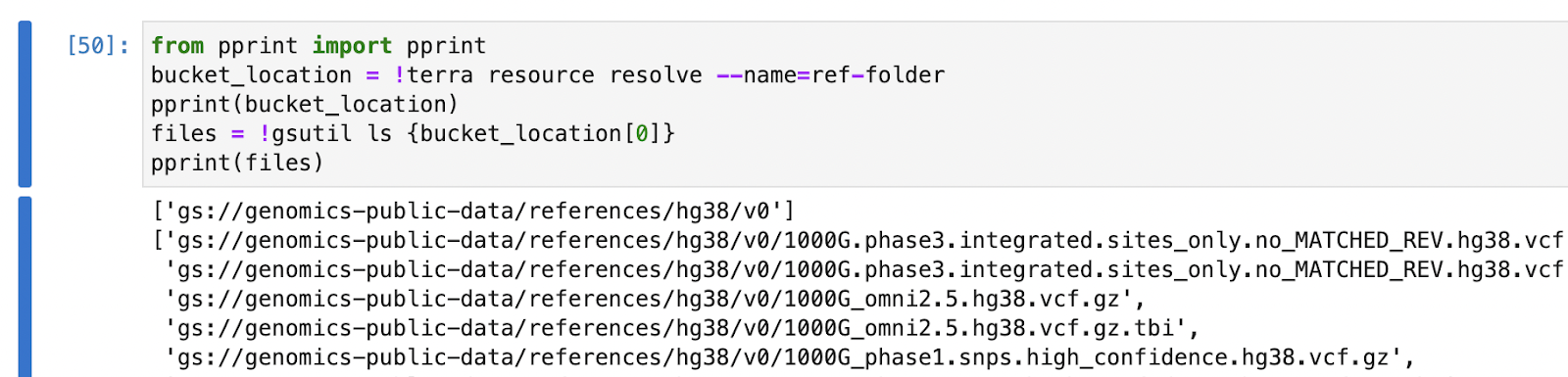
Check data access with the Workbench CLI
Since some data references may be controlled-access, it can be helpful to verify that your user
account has access to data required for your analysis. The
wb resource check-access command
provides a simple method to check access.
-
List resources in your workspace to find the name of the data resource of interest:
$ wb resource list NAME RESOURCE TYPE STEWARDSHIP TYPE DESCRIPTION 1000-genomes-example-notebooks GIT_REPO REFERENCED (unset) bam-folder GCS_OBJECT REFERENCED (unset) code GIT_REPO REFERENCED (unset) cram-folder GCS_OBJECT REFERENCED (unset) -
Run
wb resource check-accesswith the data resource name to verify that your account has access:$ wb resource check-access --id=bam-folder User's workspace SA in their proxy group (PROXY_0123456789101aa04fec6@verily-bvdp.com) DOES have access to this resource.
Note
You can combine this CLI command with a small amount of Python code to loop over all resources in a workspace and check access one-by-one: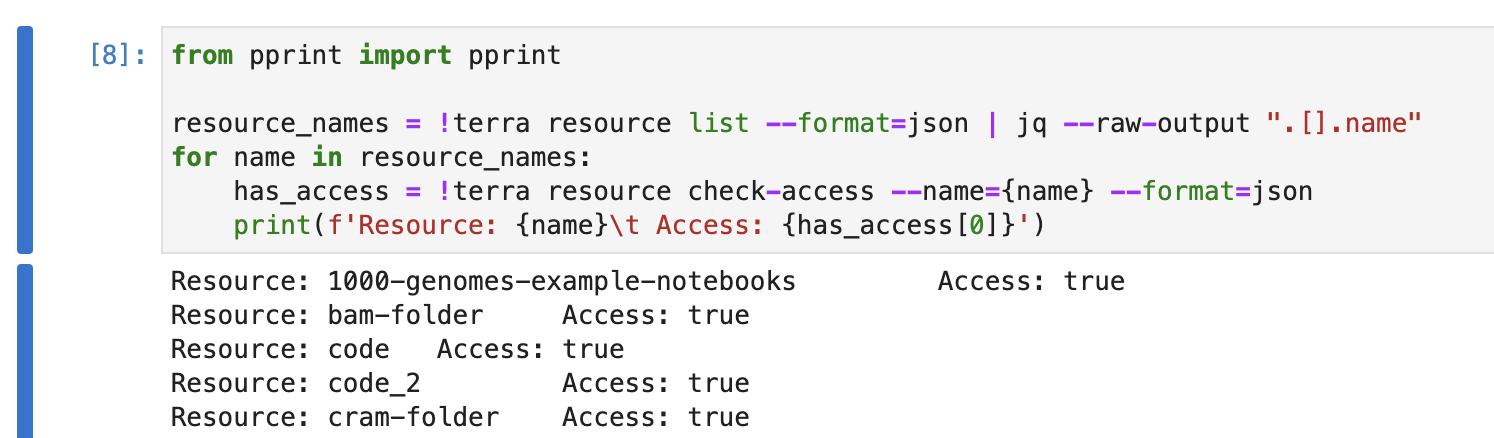
Browse a storage bucket
To quickly browse the contents of a Cloud Storage or S3 storage bucket from a workspace, use the built-in storage browser from the Workbench web UI:
- Open the workspace Resources tab and navigate to the bucket resource of interest.
- Click on the resource to view the details pane.
- Click the Browse button to browse the bucket contents in a new window.
Note
For workspaces enrolled in a perimeter, bucket browsing is only available if your perimeter administrator has enabled it. When enabled, your perimeter may restrict which file types can be previewed and impose file size limits. If the Browse button is disabled, contact your administrator to request access. See Bucket browsing for more details about bucket browsing in a perimeter.View file details and download files
Click an individual file or folder to view its details in the browser window. The details pane will show file details such as last modified date and file size, and allow you to download the file.
Preview file contents
Certain supported file types, such as .ipynb notebook files and .csv tabular data, will show a
Preview button. Click the button to open a preview of the file.
Workbench supports the below file types for preview (values are the file extensions):
- Images: bmp, gif, jpeg, jpg, png, svg, tiff
- Documents: pdf
- Markup: htm, html, md
- Notebooks: ipynb, rmd
- Tabular: csv, tsv
- Text and code: json, log, nf, rc, script, sh, stderr, stdout, txt, wdl, yaml, yml
- Genomics (IGV): assoc, bam, bb, bed, bedgraph, birdseye_canary_calls, broadpeak, bw, cbs, cram, gct, gwas, linear, logistic, qassoc, sam, seg, vcf
Browse BigQuery data
Workbench does not have a built-in browser for Google BigQuery data. If your workspace policy allows it, you can follow a link to Google’s native BigQuery data browser:
- Click on the BigQuery dataset or table resource to show the details pane.
- Click the Browse in BigQuery button to open the dataset or table in Google’s BigQuery data browser.
Save and share data
The utilities that Workbench provides to locate data also have a role to play in making it possible to upload local files to your cloud-native workspace data storage.
Save data to your workspace
When you run a tool or analysis script on your laptop or in a personal compute environment, results
are usually stored as private files attached to that device. To archive your results or share them
with collaborators, you'll need to transfer data back to a shared storage resource in your
workspace. A typical Workbench workspace might have a results or shared Cloud Storage
bucket designed for this purpose, or a database resource for collecting tabular analysis outputs.
Upload a file to Cloud Storage with the Workbench CLI
The Workbench CLI features a
wb gcloud storage command that wraps around Google’s
Cloud Storage CLI. When this command is invoked, wb sets the correct cloud credentials and Google
Cloud project ID before passing arguments to the underlying gcloud storage executable.
To upload a file from your computer or cloud app to a workspace storage bucket:
-
Navigate your local computer to the path of the file you wish to upload.
-
Identify the name of the Cloud Storage resource that will be your destination.
-
Use a combination of
wb gcloud storage cpandwb resource resolveto copy the file to Workbench’s cloud-native storage:$ wb gcloud storage cp iris.csv $(wb resource resolve --id=scratch)/ Setting the gcloud project to the workspace project Updated property [core/project]. Copying file://iris.csv [Content-Type=text/csv]... / [0 files][ 0.0 B/ 3.9 KiB] / [1 files][ 3.9 KiB/ 3.9 KiB] Operation completed over 1 objects/3.9 KiB. Restoring the original gcloud project configuration: vwb-vdevel-clean-pear-1234 Updated property [core/project].
Load a CSV file into BigQuery with the Workbench CLI
The Workbench CLI features a wb bq command that
wraps around Google’s bq command-line utility. When this command is invoked, the CLI sets the
correct cloud credentials and Google Cloud project ID before passing arguments to the underlying
bq executable.
$ wb bq load --source_format=CSV --autodetect $(wb resource resolve --id=results_dataset).iris_data iris.csv
Setting the gcloud project to the workspace project
Updated property [core/project].

Upload complete.

Waiting on bqjob_r54fad8aedc10f440_000001844d0de670_1 ... (0s) Current status: RUNNING

Waiting on bqjob_r54fad8aedc10f440_000001844d0de670_1 ... (1s) Current status: RUNNING

Waiting on bqjob_r54fad8aedc10f440_000001844d0de670_1 ... (1s) Current status: DONE

Restoring the original gcloud project configuration: terra-vdevel-clean-pear-1234

Updated property [core/project].
Share a link to output data
To share the results of your output, use the Workbench web UI to find a stable URL linking to a file within a workspace data resource:
- Open the workspace Resources tab and locate the data resource containing your file of interest. Click the resource to view the details pane.
- Click the Browse button to open Workbench's storage browsing window.
- Navigate to the file of interest and click on it to view the file details pane.
- In your browser, select the current URL and copy it.
- Share the URL with a collaborator who has access to the same workspace. This link should open the Workbench bucket browser to the same file location.
Last Modified: 2 March 2026