Integrate GitHub with Workbench
Categories:
Prior reading: Workflows in Verily Workbench: Cromwell, dsub, and Nextflow
Purpose: This document explains how to connect your GitHub account to your Workbench profile to access WDL files in a repository.
Introduction
Workbench users can link their Workbench profiles to their GitHub accounts, allowing them to access private and public repositories.
Currently, this integration allows for referencing WDL files in a GitHub repository to add and run workflows from GCP and AWS workspaces.
Link your GitHub account
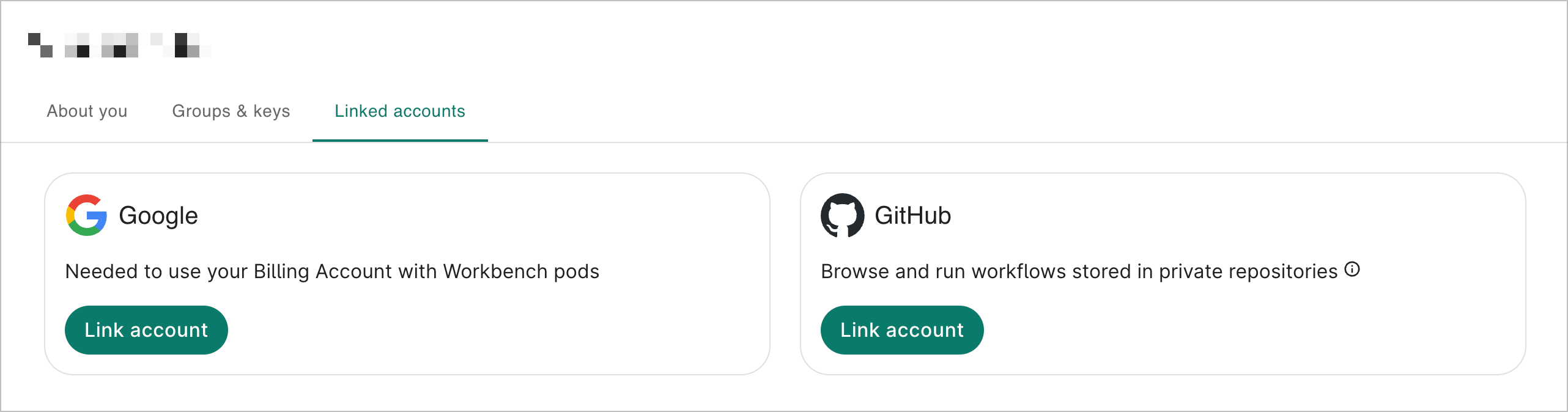
Navigate to your Workbench profile and select the Linked accounts tab. Select Link account for GitHub.
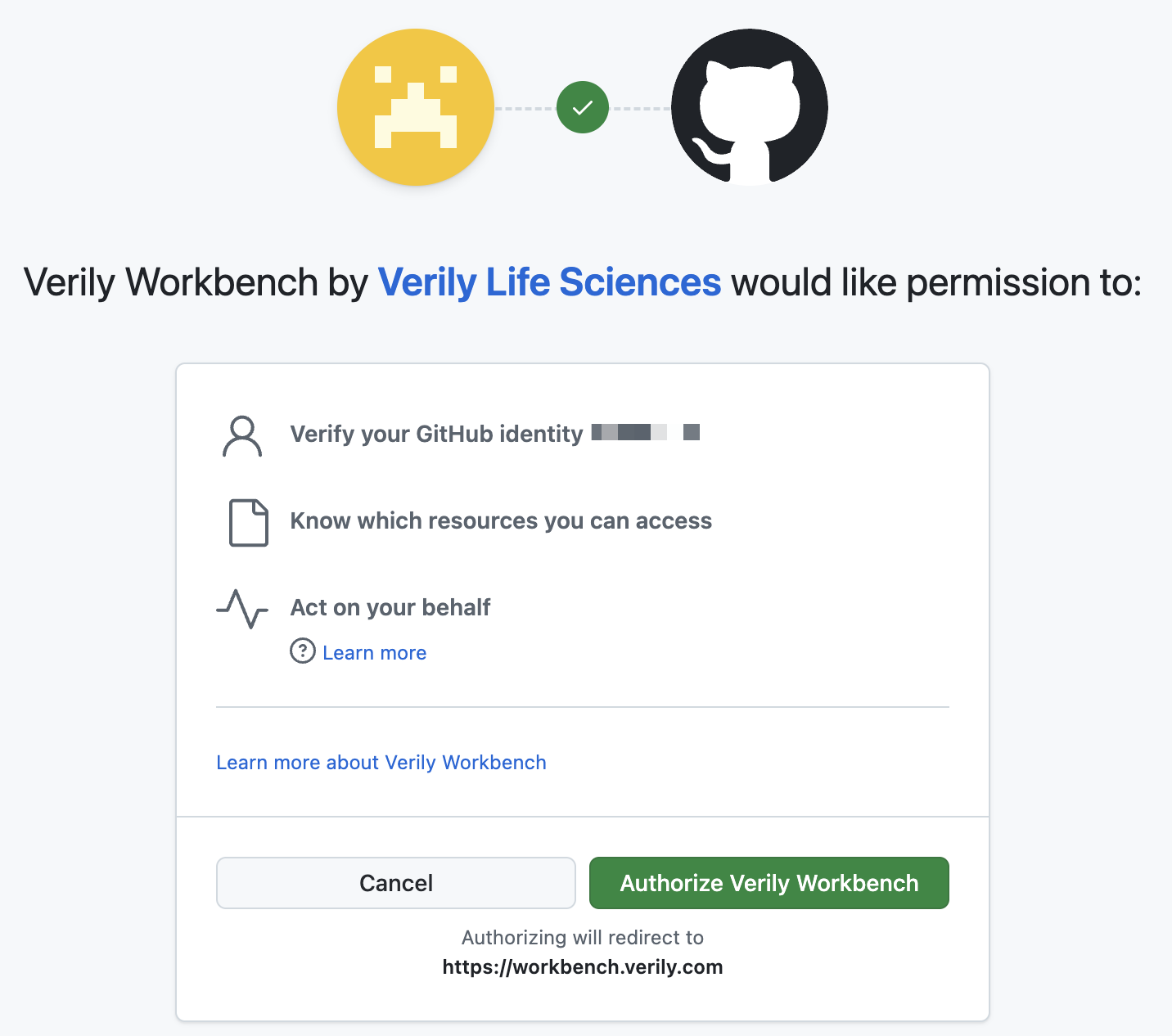
This will open a page asking you to authorize Verily Workbench to verify your GitHub identity, know which resources you can access, and act on your behalf. If you agree, select Authorize Verily Workbench.
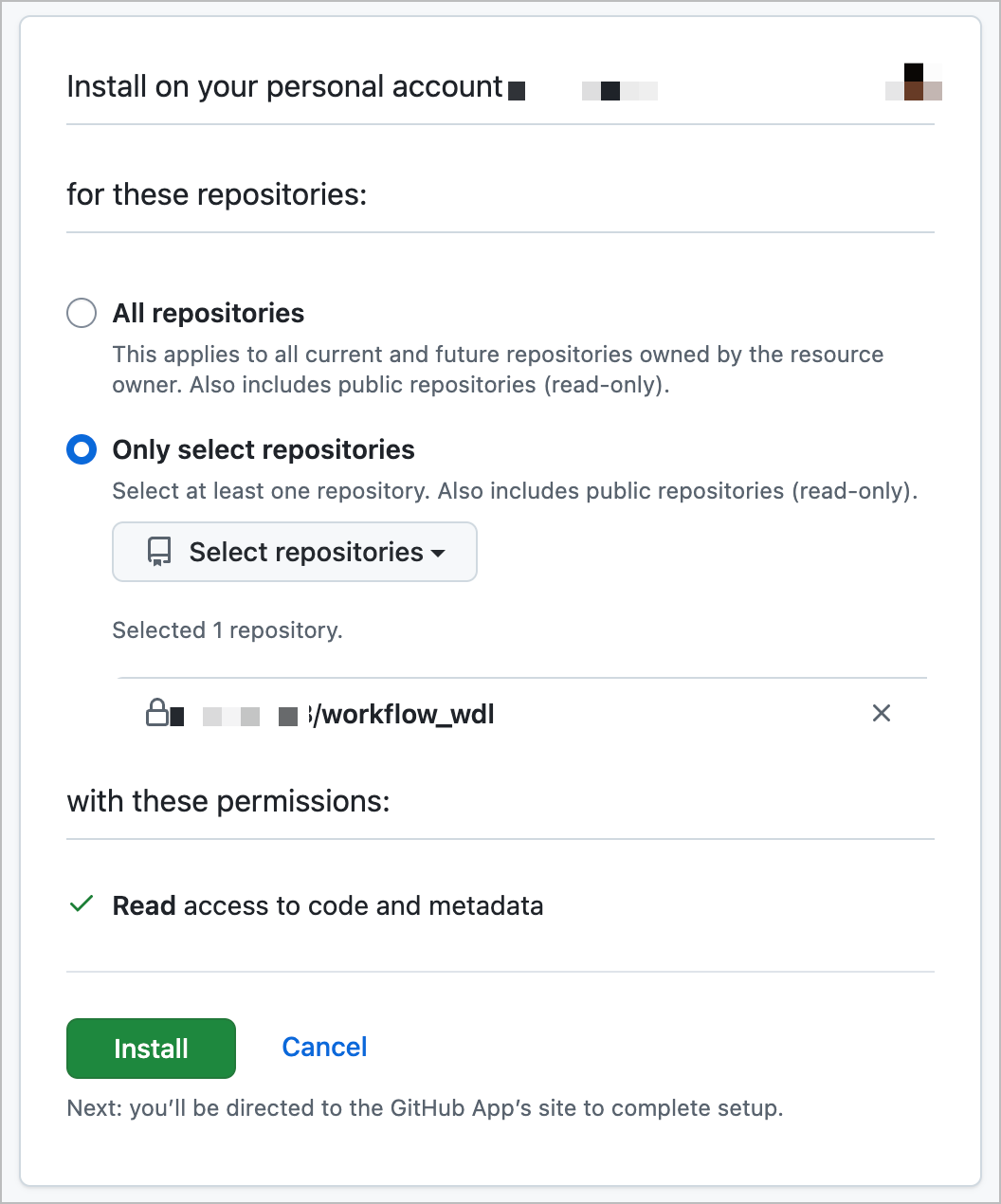
Next, you'll be asked to confirm where you want to install Verily Workbench. Select the GitHub account you'd like to use. Workbench will be given read access to code and metadata in either all of your repositories or select repositories. Select Install.
Note
You can only select repositories that you own. To select private repositories not owned by you, the repo owner must install the Workbench application on their repositories. They can visit this page to install the Workbench application if they don't have a Workbench account.Access WDL files from your linked GitHub account
With the Workbench application installed, you can access WDL files in your GitHub repository directly from the Workbench web UI.
Navigate to the Workflows tab in a workspace and add a workflow.
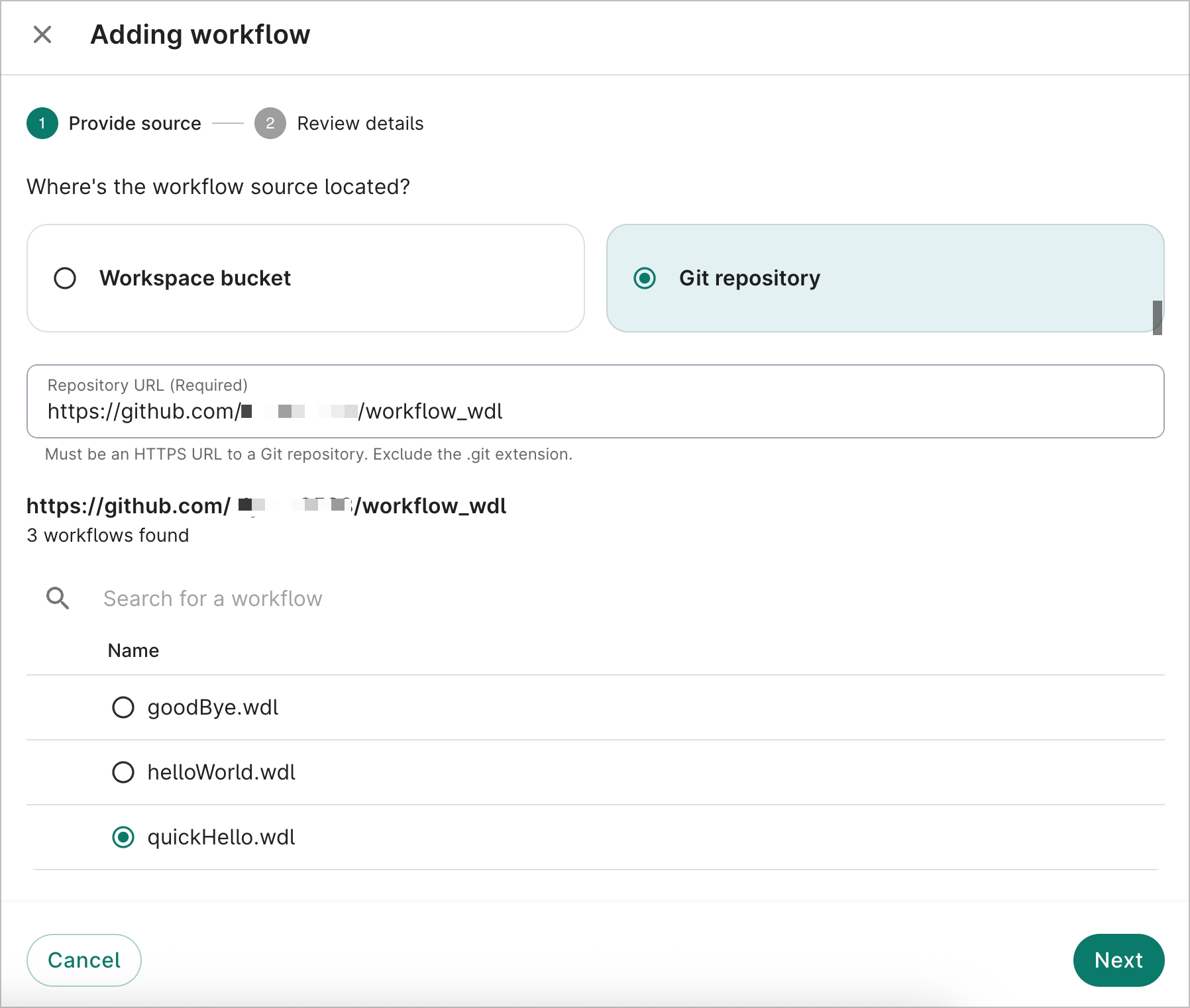
On the first Adding workflow dialog screen, select Git repository and enter the repository URL where your WDL file lives. Workbench should present the WDL file(s) that live in that repository. Select the WDL file you want to add and choose Next.
On the next dialog screen, review details and select Add to workspace.
For the workflow you just added, select + New job. Complete the three dialog screens, ensuring
that you've selected an output bucket. Select Submit job. Alternatively, you can run the
workflow via the Workbench CLI. See
wb workflow job run for more details.
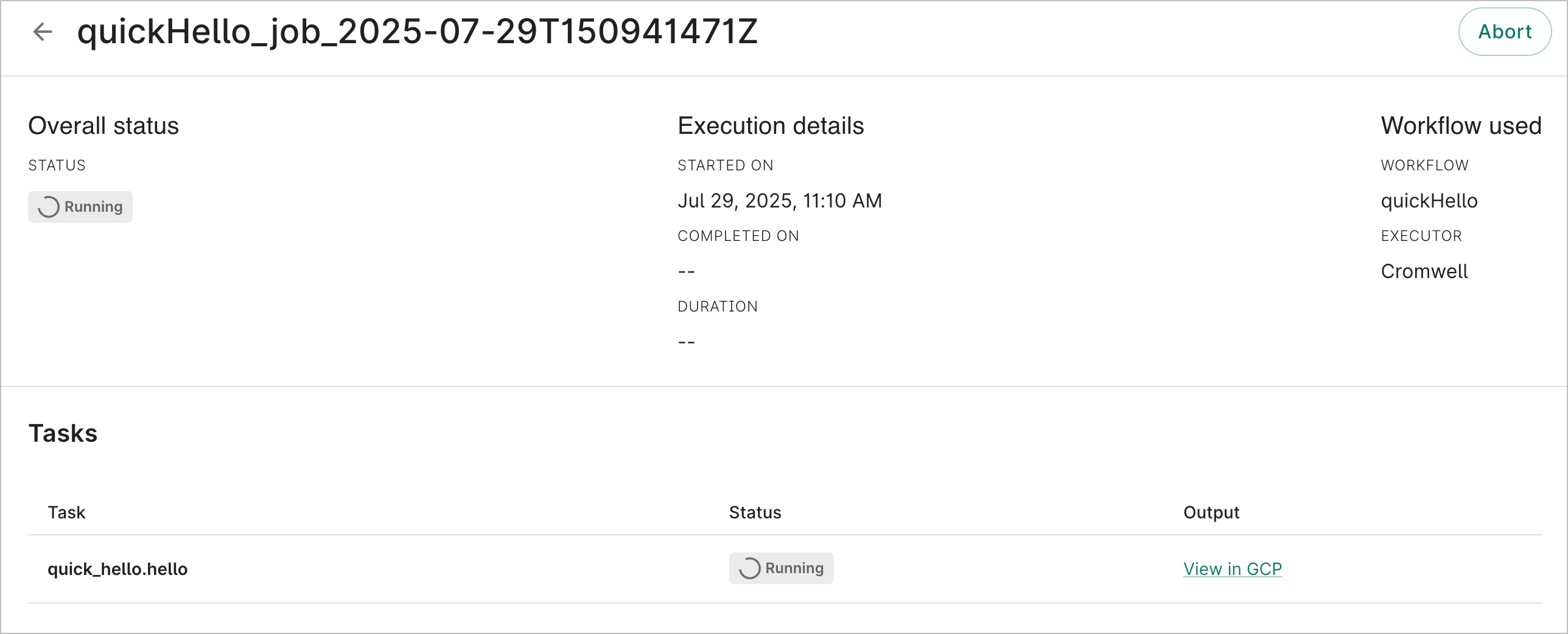
On the Workflows page, select the Job status tab. The job you just ran should be listed here, and you can select it to see execution details and a link to view the job output in GCP. You can also abort the job on the job details page.
Be aware
A workflow is a shared resource in a workspace. However, if a user adds a GitHub workflow from a private repository that other workspace users can't access, then only that user will be able to run the workflow.Last Modified: 15 August 2025