Network policy
Categories:
Purpose: This document explains the purpose of a network policy in Verily Workbench and how to create one.
Introduction
What is a network policy?
A Verily Workbench network policy limits internet access for batch VMs. With the exception of Google APIs, these VMs will be unable to send or receive network traffic including files, APIs, packages, and code.
A network policy is an optional feature that disables direct internet access for virtual machines (VMs) that run batch jobs. When a data collection has a network policy turned on and is added to a workspace, all batch VMs in that workspace will be unable to send or receive network traffic.
Once a workspace is enrolled in a network policy, the policy can never be removed, though the workspace can still be deleted normally.
By default, this policy applies to Google Batch API VMs and Dataproc worker nodes.
Note
Currently, network policies can only be applied to Google Cloud Platform (GCP)-backed data collections.Why enforce a network policy?
A network policy helps ensure your data does not leave the boundaries of Workbench. Enforcing a network policy is a critical step in protecting sensitive data from unauthorized exfiltration (data theft). This is especially important for batch VMs, which often handle large datasets and can be a prime target for attackers. By default, these VMs might have broad internet access, creating an easy pathway for data to be moved out of your secure environment.
Batch VMs are often used for high-volume data processing, making them a significant point of vulnerability. Without proper controls, a malicious actor or a misconfigured process could easily transfer large amounts of data to an external location using common internet protocols like HTTP, FTP, or even a simple API call to a cloud storage service outside of your perimeter. Because these VMs are designed for data-intensive tasks, it can be challenging to differentiate legitimate data transfer from a malicious actor without strict policy enforcement.
In contrast, interactive apps like Jupyter notebooks retain internet access to support a productive research environment, allowing users to install packages and access external resources.
Data exfiltration best practices
Our network policy aims to reduce exfiltration risks by shutting down internet access for batch VMs. This is a recommended security measure because these VMs don't need internet access for their primary function. Therefore, blocking it is a simple and effective way to prevent unauthorized data exfiltration. For a robust solution, we recommend using this network policy in conjunction with our existing perimeter policy with data exfiltration monitoring enabled. This layered approach creates a comprehensive defense.
In general, a perimeter prevents the movement of data, either from inside the perimeter to outside (egress), or from outside the perimeter to inside (ingress). This can mean:
- The network policy blocks traffic from batch workers.
- The perimeter policy acts as a digital fence around your data.
- Exfiltration monitoring provides an audit trail for any suspicious activity from interactive apps.
Getting started
Apply a network policy
When creating a new data collection, you'll be asked if you want to apply a network policy in the Set policies step.
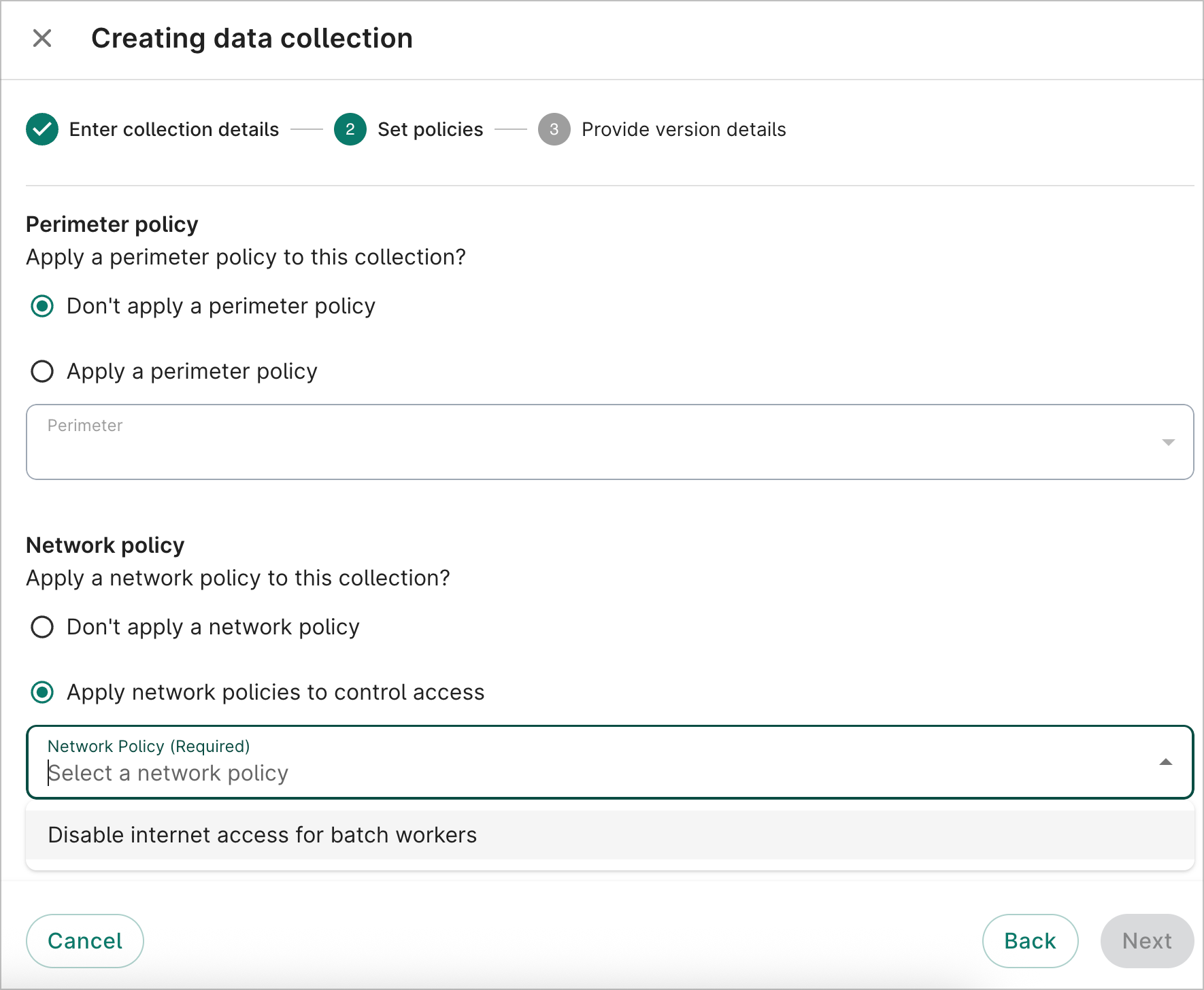
A network policy will also be applied to your workspace when you add resources from a data collection with a network policy. The policy will shut down internet access for all batch VMs and Dataproc worker nodes inside that workspace.
Be aware
Once a data collection with a network policy is added to a workspace, the policy is permanently configured for that workspace. The policy cannot be removed from the workspace, even if the data collection is removed from the workspace.Use workflows and batch jobs without internet access
Even with a network policy, you can still perform essential workflow and batch job operations.
You can accomplish these tasks by using private Google endpoints and internal-only services.
Read external files
You can read files from external Google Cloud Storage (GCS)
buckets without internet access, since batch and
Dataproc VMs can communicate with Google APIs over a private network connection. The network policy
is configured to allow this communication, ensuring your jobs can read and write data without
needing a public internet connection. You can use tools like gcloud storage within your batch
process script to download files from any accessible GCS location, including your workspace bucket.
Use container images
To run your batch jobs, you can use container images from an approved source.
Access your own images (public or private)
You can easily pull your own public or private images from a Google Artifact Registry (GAR) repository. This process doesn't require an external internet connection because GAR is an internal Google Cloud service that your VMs can communicate with over a private network.
Access external images
To use images from public registries like Docker Hub, you can configure a Google Artifact Registry (GAR) remote repository which acts as a proxy.
The first time an image is requested, the remote repository securely pulls it from the external source. It then caches the image locally within your perimeter.
Your batch jobs can then pull the cached image from the remote repository without needing a direct internet connection. This process is faster and more reliable since the image is already cached. Below is a list of tools and the associated public Docker images in Google Artifact Registry (GAR) that will work with batch processes:
Last Modified: 12 December 2025