Use the pgweb PostgreSQL client
Categories:
Introduction
pgweb is a web-based tool for browsing and querying PostgreSQL databases directly from your Workbench workspace. This article will walk you through creating a cloud app with the pgweb PostgreSQL client and using it to browse and query data.
Note
The pgweb PostgreSQL client is only available in AWS-backed Workbench workspaces.Create a cloud app
In an AWS-backed workspace, select the Apps tab and click + New app instance.
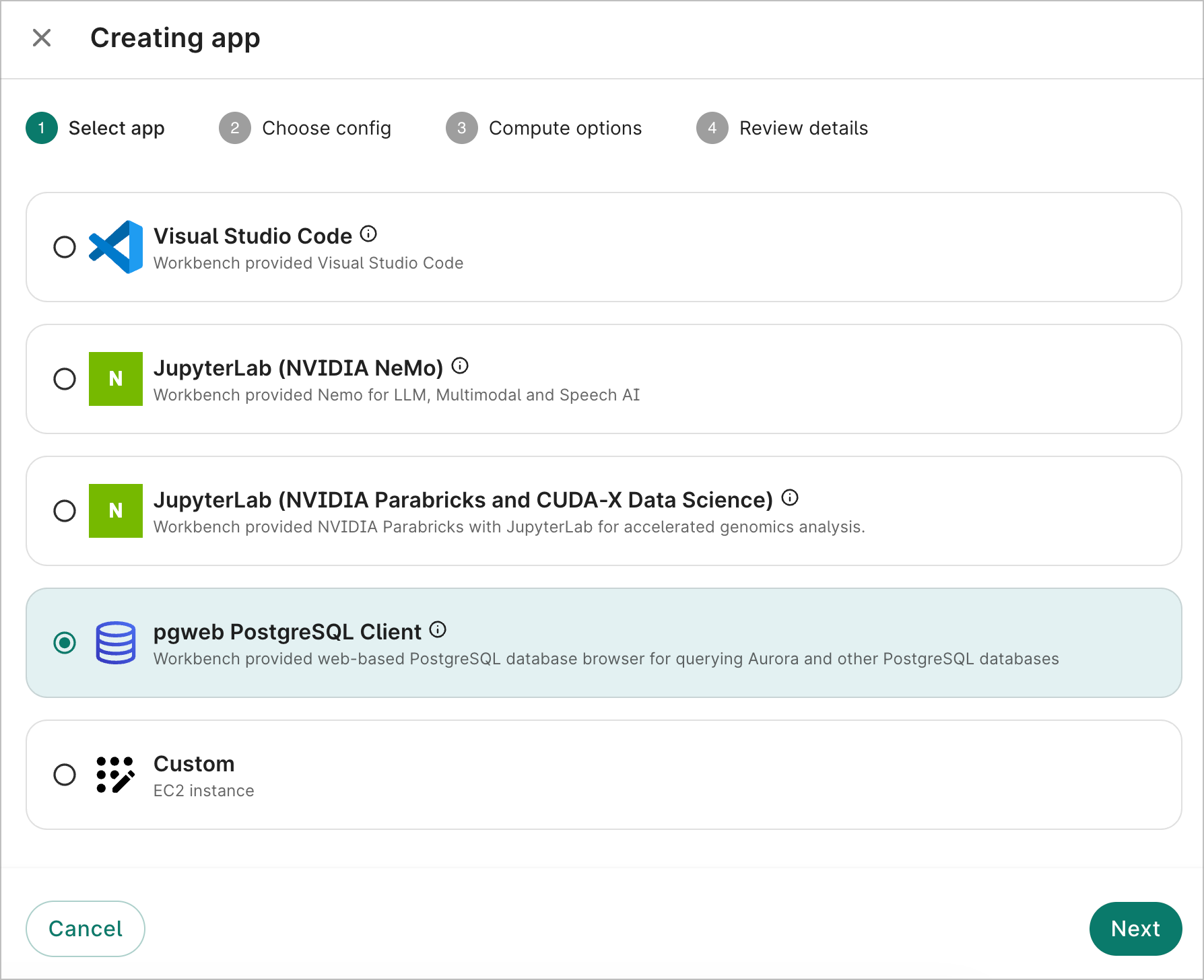
A Creating app dialog will open. Select the pgweb PostgreSQL Client app and click Next. Proceed through the steps and click Create app. Once the app is created, it will automatically start running.
Connect to a database
Launch your running pgweb app by clicking its name. The app will open in a new browser tab.
Ensure the Standard option is selected and choose a database from the Bookmark dropdown. You'll see bookmarks for databases that have been added to your workspace:
<database-name> (Read-Only)- For viewing and querying data<database-name> (Write-Read)- For modifying data (only visible if you have write access)
Credentials are handled automatically. Click Connect.
Note
Only databases added to your Workbench workspace appear in the dropdown. If you don't see a database you expect, confirm it's been added to the workspace and wait a few minutes for the bookmark list to refresh.Work with data
The left sidebar shows all tables, views, and other database objects. Click a table name to view its contents.
Sort and filter data
Select the Rows tab in the top options bar to display the table's data. Click any column header to sort. Click again to reverse the sort order.
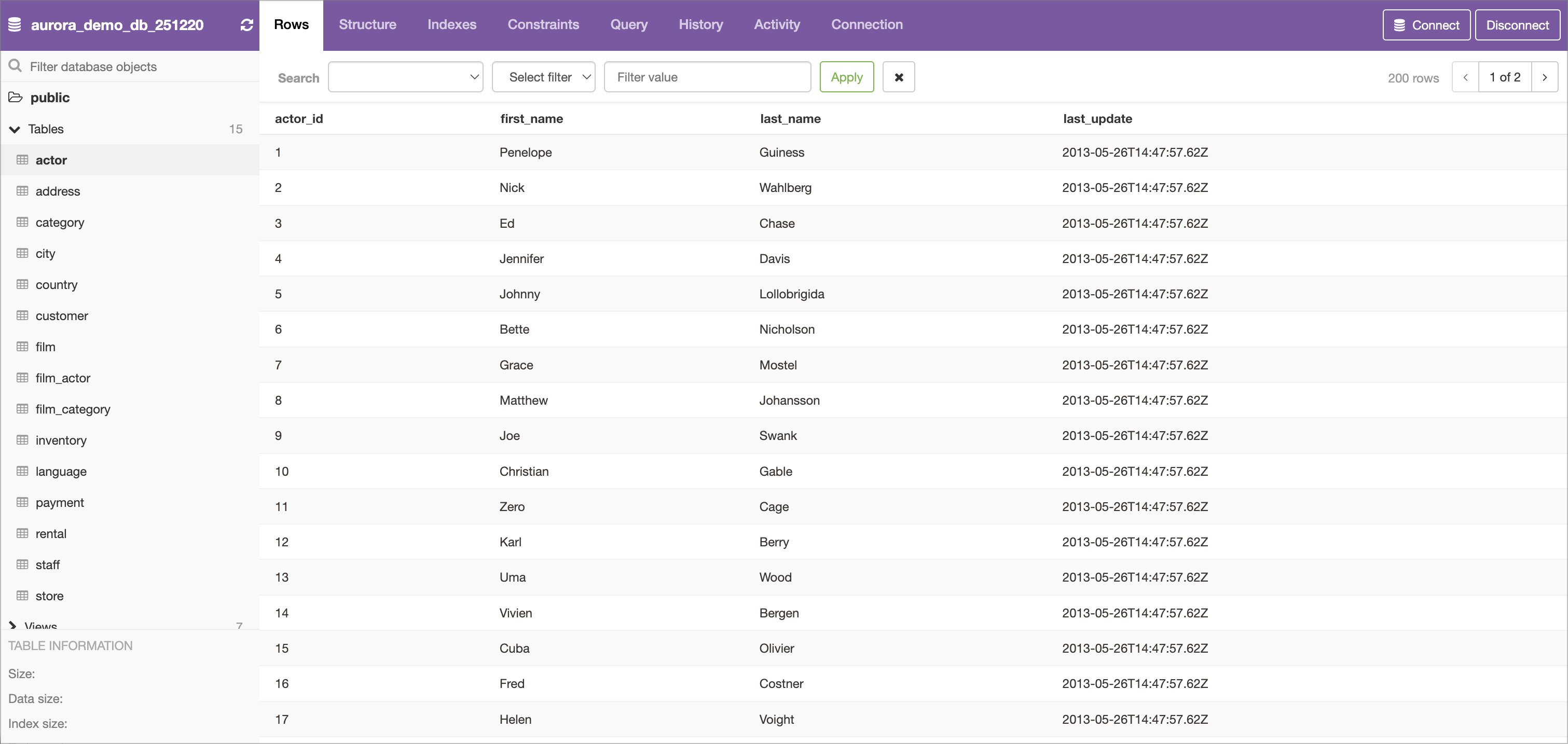
To filter results, use the search bar above the data to search for specific records. Use the Select column and Select filter dropdowns and the Filter value field to define your search criteria and click Apply.
View table information
The Structure, Indexes, and Constraints tabs show details about the table's schema and rules.
Run queries
Click the Query tab to write custom SQL. Type your query and click Run Query (or press
Ctrl + Enter).
Example queries:
-- Count records by category
SELECT category, COUNT(*) as count
FROM samples
GROUP BY category
ORDER BY count DESC;

-- Find specific records
SELECT *
FROM patients
WHERE enrollment_date > '2024-01-01'
LIMIT 100;

-- Join related tables
SELECT p.patient_id, p.name, COUNT(v.id) as visit_count
FROM patients p
LEFT JOIN visits v ON p.id = v.patient_id
GROUP BY p.patient_id, p.name;
Tips for large datasets
- Add
LIMIT 100to queries when exploring unfamiliar tables - Use specific column names instead of
SELECT * - Filter on indexed columns (like IDs and dates) for faster results
Click the History tab to view and copy previous queries.
Export data
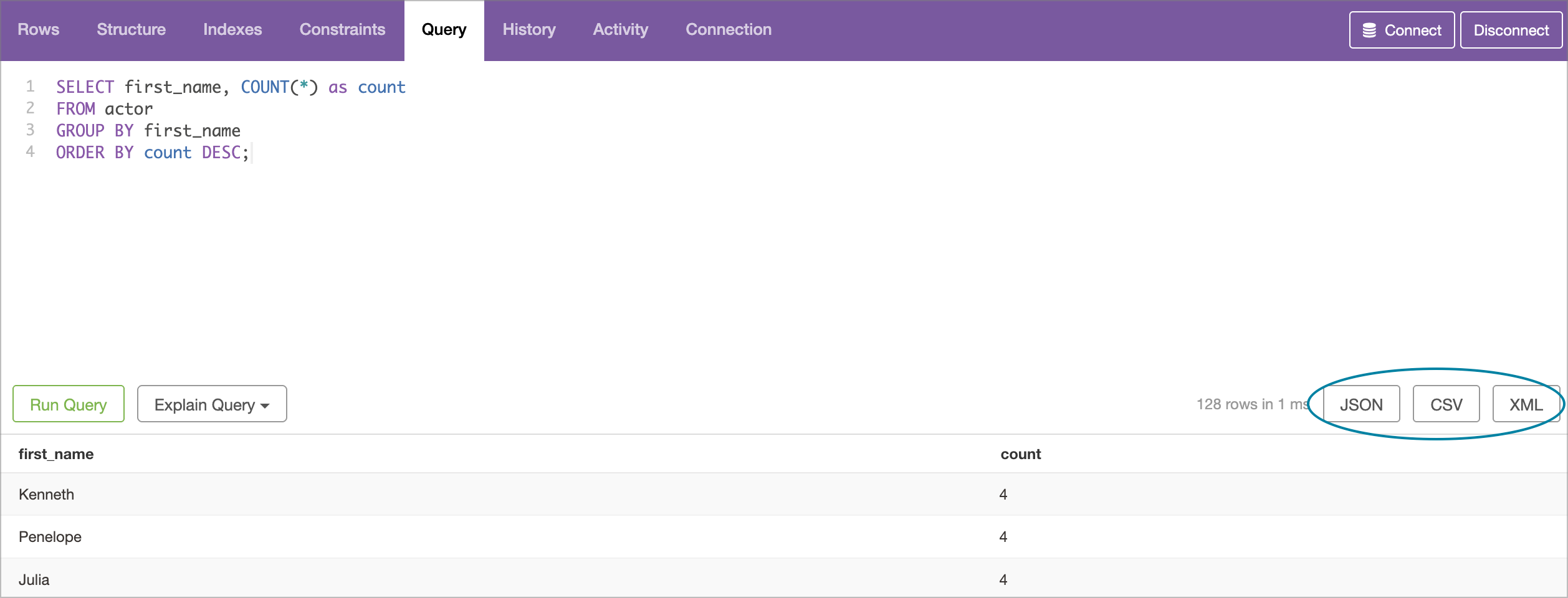
You can download query results or table data. Click the JSON, CSV, or XML buttons to instantly download data to your local machine.
| Format | Best for |
|---|---|
| JSON | Programmatic processing |
| CSV | Excel, R, Python pandas |
| XML | Structured data exchange |
Change databases
Click Connect in the upper-right corner to return to the main pgweb screen. Select a different database from the Bookmark dropdown and click Connect.
Read-only vs write-read access
Follow these guidelines for deciding which database type to connect to:
Read-Only: Use for viewing data and running SELECT queries. This is the safest option for analysis work.
Write-Read: Required for INSERT, UPDATE, or DELETE operations. Only use when you need to modify data.
Troubleshooting
| Issue | Solution |
|---|---|
| Database not in dropdown | Verify it's been added to your workspace; wait a few minutes for refresh |
| "Permission denied" error | You may need write-read access for this operation |
| Connection lost | Return to the connection screen and re-select your bookmark |
| Slow query | Add filters or LIMIT clause; avoid SELECT * on large tables |
Last Modified: 6 May 2026