Manage organizations
Categories:
Purpose: This document covers organizations and organization management in Verily Workbench.
Introduction
Flexible and structured management of users and groups is a core requirement for enterprise software platforms. Organizational administrators should have visibility into the status of their population of managed users. They should also have control over the creation and structure of groups.
IT and security administrators should be able to set organization-wide defaults and policies. Well-defined organizational roles should support self-service actions where possible to ensure scalability.
To support these needs, Verily Workbench maintains a top-level organization concept, representing a set of users linked by their employer or primary institutional identity. Each user, workspace, and data collection belongs to exactly one organization, creating a clear boundary of ownership, management, and control.
Most Workbench customers will identify an Organization (Org) Admin from within their team to manage:
- Organization, groups, and user lifecycle
- Onboarding and offboarding of researchers
- Policy controls
- Billing configuration
In some cases (and depending on the license agreement), a Workbench customer may delegate this responsibility to the Workbench Support team instead.
Most of the operations described below can be done via the Workbench web UI or the Workbench CLI. In a few cases, it's necessary to use the command-line interface (CLI).
Key concepts
Organizations
An organization in Workbench represents the top level of tenancy within the enterprise platform. Every workspace, data collection, and user can trace back to a single owning organization, providing a logical unit of separation, administration, and ownership.
Conceptually, a Workbench organization is somewhat similar to a Google Cloud organization (where Google Cloud projects are all housed under a single Google Cloud organization) or to an Active Directory domain (where Active Directory users are housed under a single domain). Naturally, there are differences in how exactly this concept is applied to the Workbench system.
Each organization contains the following:
- Metadata and configuration (e.g., name, description)
- Roles on the organization
- Users in the organization
- Groups
- Resources (e.g., workspaces and data collections)
- A group containing all members of the organization
Each organization also has at least one Organization Admin who is responsible for managing the organization and its configuration. See Organization roles and permissions below for more details about the Org Admin role.
Users
Every Workbench user must be a member of exactly one organization. An Org Admin typically invites new users to the system and controls the roles the user has on the organization. See Manage users for more information.
Groups
Every Workbench group is owned by an organization. The Org Admin controls which users can create and manage groups by the roles the user has on the organization. See Manage groups for more details.
There is a group that is automatically created and maintained by the Workbench system that
contains all users in the organization. You can use that group for sharing resources with the whole
organization. You can find the group name using the
wb org describe CLI command.
Manage organizations
Organization roles and permissions
The set of roles and permissions at the organization level is as follows:
| Role | Description | Permissions |
|---|---|---|
| Workbench Support | A Workbench-wide role. Generally assumed temporarily by the Workbench Support and Operations teams. |
|
| Organization Admin | An individual with delegated responsibility to manage organization-level configuration, groups, and user lifecycles. |
|
| Organization User | An end user of Workbench who is a member of an organization. |
|
| Pod Manager | An individual who can create pods in addition to everything an Organization User can do. When they create a pod, this user is also granted the Pod Admin role on the pod. |
|
| Group Creator | An individual who can create groups in addition to everything an Organization User can do. When they create a group, this user is also granted the Group Admin role on the group. |
|
Request a new organization
New organizations are created by the Workbench Support role. Generally a new organization will be created as part of the onboarding process of a new Workbench customer.
In some scenarios, it may make sense to create a new organization to represent a new group of users who will access Workbench under an existing license agreement (i.e., collaborators from a new institution or customer organization). In this case, please contact Workbench Support to request a new organization. Include at least the following information:
- Name: Example Organization
- Short name: example-org
- Administrator emails: admin.1@example.com, admin.2@example.com
Note
When a new organization is created, Workbench will implicitly create a Workbench group with-org appended to the organization name (e.g.,
exampleOrg-org). This group will contain all members of your organization and can be used to share a
workspace or data collection with other members in your organization. However, using this group for
a group policy on a workspace or data collection will limit the ability for Verily internal support
to assist with troubleshooting. For more information about group policies, see Group
policy.
Verify details of the new organization
In the Workbench web UI, you can view the organizations to which you have access.
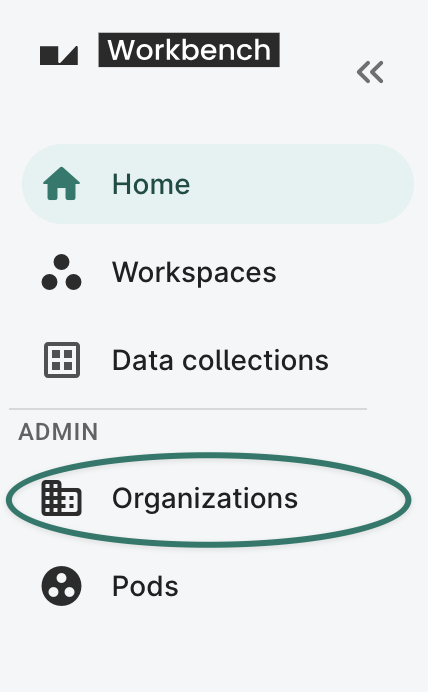
The Organizations page includes the organization that you belong to, as well as any other organizations for which you have administrative permissions.
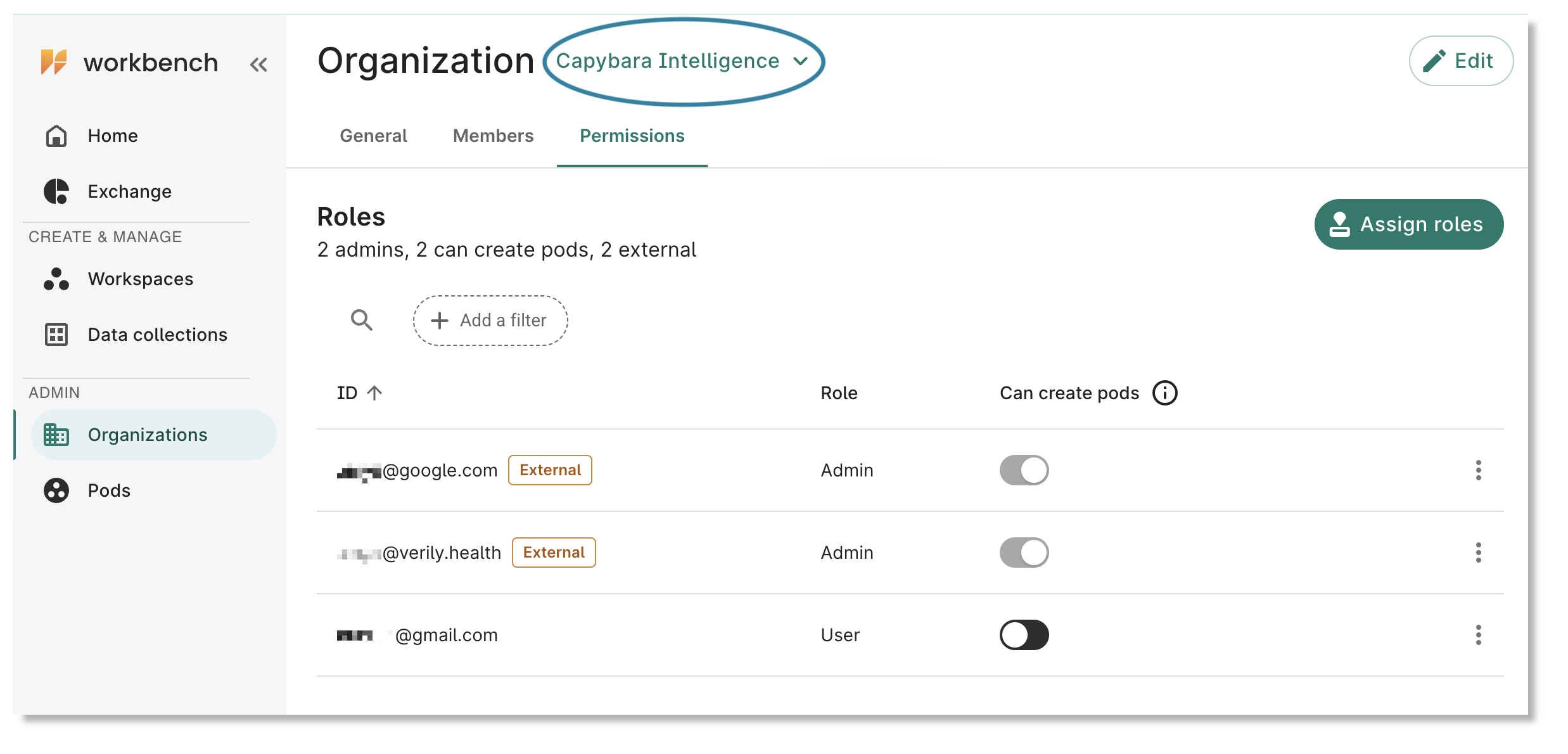
You should be able to select the new organization from the pulldown menu and verify that you're an Admin for that org.
To verify the details of the new organization (and to confirm that you’ve been granted the Org Admin
role), use the wb org describe and
wb org user list commands from the
CLI.
$ wb org describe --org=example-org

ID: example-org
Name: Example Organization
ToS Required: true
Description: (unset)

$ wb org user list --org=example-org

EMAIL                           STATE       TOS STATUS           ROLES
admin.1@example.com             ENABLED     TOS_OK               ADMIN
Grant the Organization Admin role
The individual(s) entrusted to administer a given organization may change over time. An admin can
grant admin privileges to another org member with the
wb org role grant CLI command or via
the Workbench web UI.
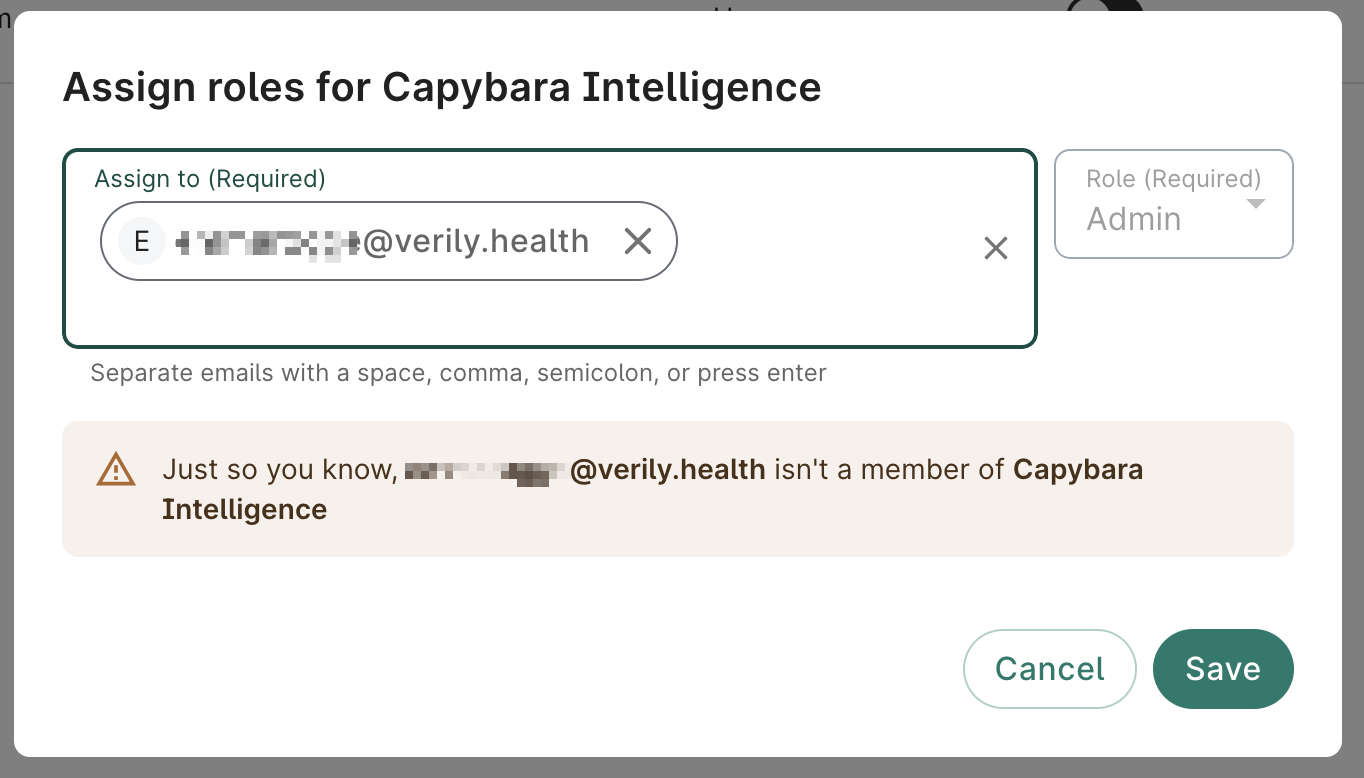
In the Permissions tab for an organization for which you have admin access, you can manage the roles for other users, or allow them to create pods.

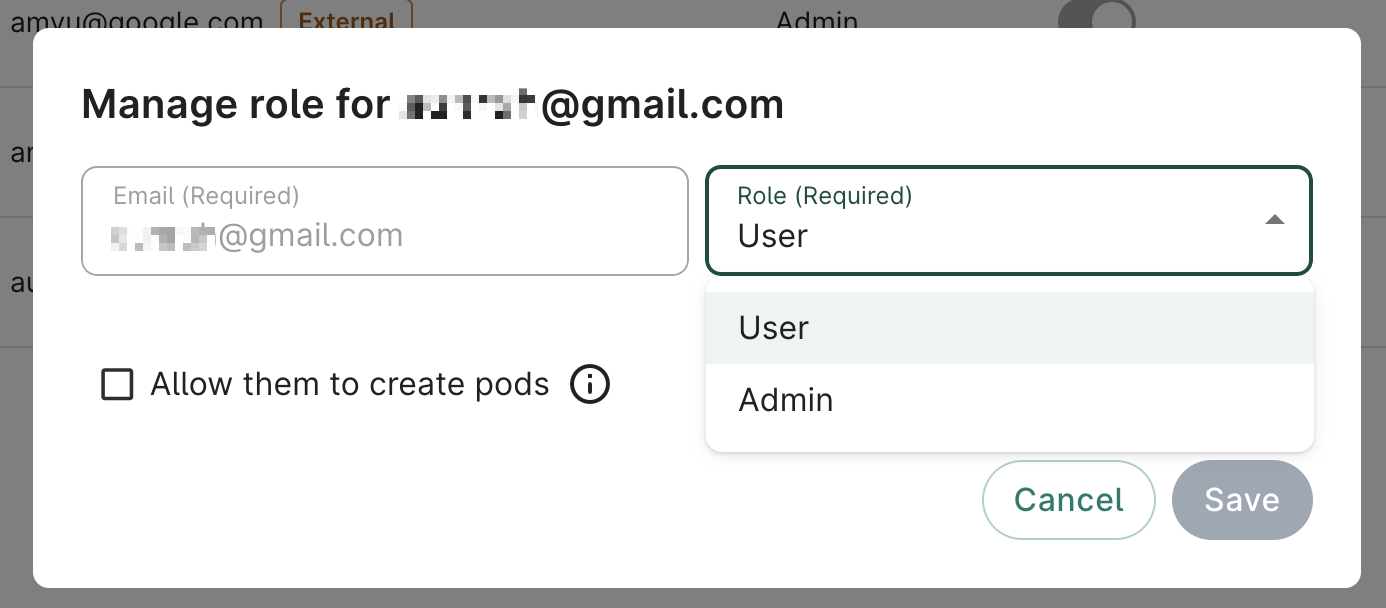
To grant the Org Admin role to a user who's not part of the organization, click the Assign roles button.
To grant a user the Admin role on an organization:
$ wb org role grant user --org=example-org --email=admin.2@example.com --role=ADMIN
Successfully granted admin role in organization example-org to user: admin.2@example.com.
To grant a group the admin role on an organization specify the name and organization of the group:
$ wb org role grant group --org=example-org --role=ADMIN --child-name=example-group --child-org=example-org
Successfully granted admin role in organization example-org to group: example-group in org: example-org.
Note
It's possible for a Workbench user who is a member of one organization to be an administrator of one or more other organizations by having the Org Admin role granted to them on multiple organizations. This setup may make sense in a setting where one Workbench customer is coordinating a research collaboration between researchers from multiple home institutions. Each institution would have a distinct organization, but an administrator from the customer organization might be granted Org Admin access across all collaborating institutions, for the sake of efficiency.Set organization-level defaults
Org Admins can update organization metadata and set defaults which will apply to certain aspects of
Workbench usage by members of the organization. Click the Edit button at the top right of
the Organizations page, or use the
wb org update CLI command:
wb org update \
  --org=example-org \
  --new-description="Researchers working under Example Corp to access the Foo Bar dataset in Workbench"
Last Modified: 2 June 2026