Access workspace files and folders from your cloud app
Categories:
Prior reading: Cloud apps overview
Purpose: This document provides detailed instructions for accessing mounted workspace files and folders from your cloud app.
Introduction
Workspace buckets and referenced folder resources automatically mount onto newly created cloud apps. The mounted resources include controlled Cloud Storage buckets, referenced Cloud Storage buckets where the user has at least READ permissions, and referenced Cloud Storage objects that reference a folder inside a Cloud Storage bucket. (You can read more about workspace resources here.) This feature uses Cloud Storage FUSE.
Terminology notes
- Referenced folder: Cloud Storage object resource pointing to an existing bucket prefix.
- Workspace resource tree: The tree of folders and resources in the Resources tab in the UI.
- Mounted resource tree: The subset of directories that mapped from the workspace folders and bucket resources, where each bucket resource directory is the mount point for the associated bucket.
Be aware
Only buckets and folders can be mounted onto new cloud apps. Individual files cannot be mounted.Bucket automounting
Bucket resources
mount into the $HOME/workspace/ directory
in an app, and include any parent workspace
folders of the resource in the workspace resource
tree. Non-bucket resources (such
as BigQuery datasets) and workspace
folders without any bucket resources inside them will be excluded.
By default, controlled Cloud Storage buckets are mounted with read-write permissions. Referenced resources are mounted with read-only permissions. To override this behavior, see Set mounting permissions in Mount buckets using the CLI.
For example, here is a workspace with the following resources:
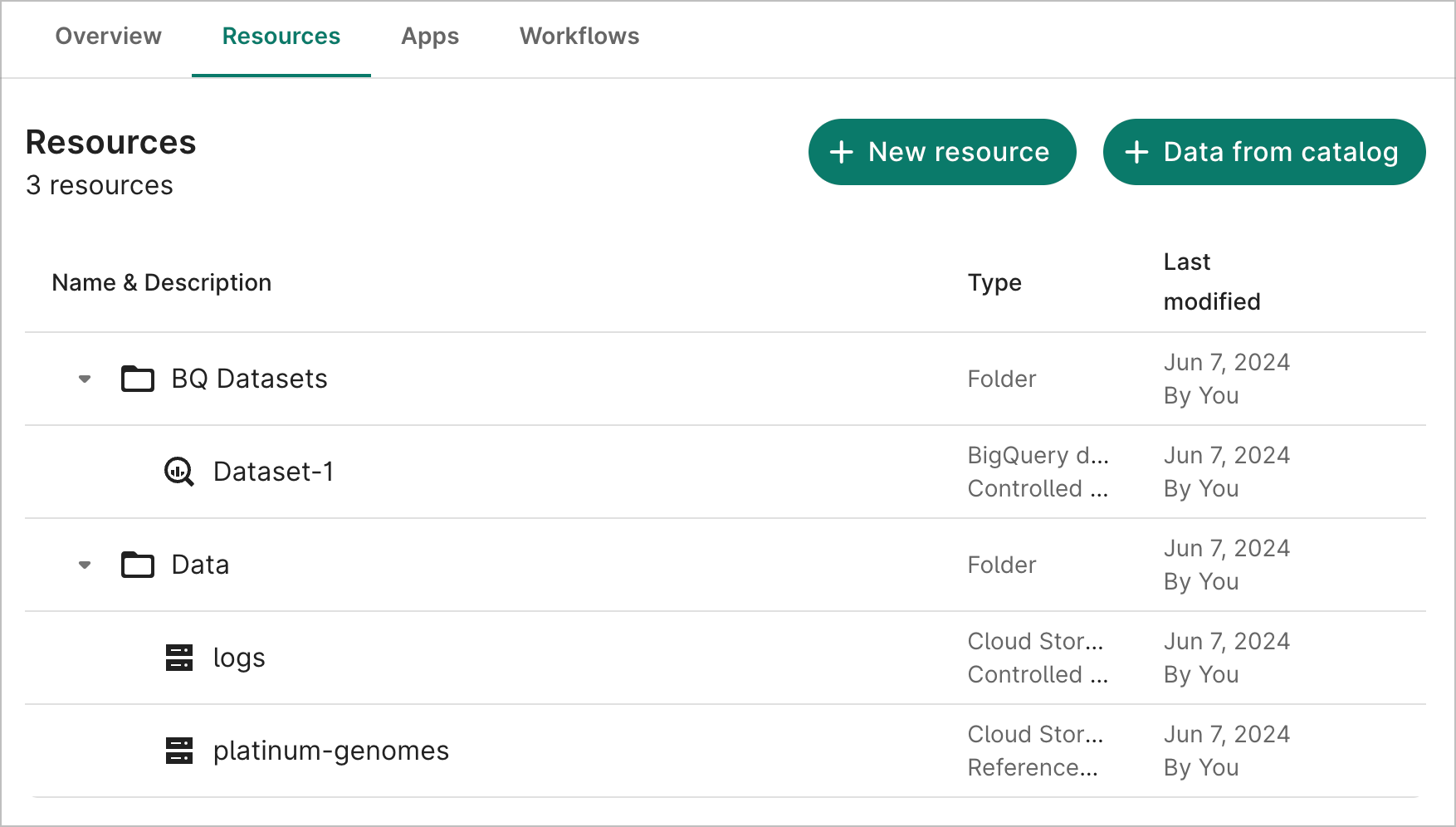
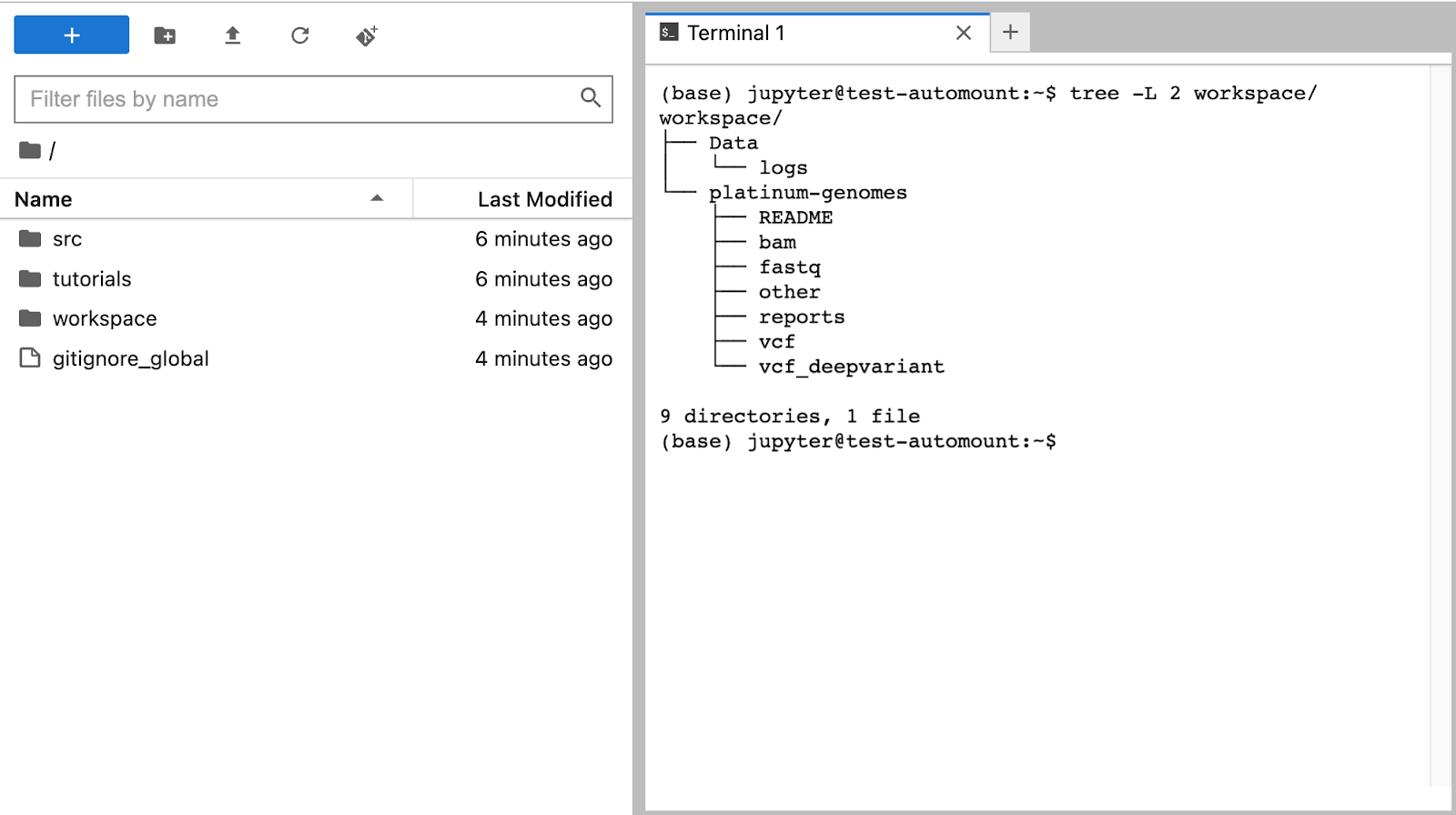
In a newly created app, a new workspace directory will contain a subset of the resource tree (including any folders that have bucket resources in them) and the bucket directories themselves.
The logs controlled bucket and platinum-genomes referenced objects are both mounted along with their contents. Notice that the BQ Datasets folder and the Dataset-1 BigQuery dataset resource are not mounted.
File permissions
By default, controlled buckets mount with read-write permissions. Referenced buckets mount with read-only permissions.
Troubleshooting
If a bucket mount is in an unrecoverable state where unmounting fails, you can manually unmount your
bucket with fusermount -u /path/to/bucket.
The utility we use to mount storage buckets has trouble if there are malformed Cloud Storage bucket
objects, including ones that start with /. (This can happen, e.g., if you run a command like:
gsutil cp temp.txt gs://<bucket_name>//temp.txt). You can click the Open in GCP button for the
bucket resource to browse the bucket in the GCP Cloud Console and check whether or not that is the
case.
Mounting errors
If any resource fails to mount, the directory for which the resource would have mounted if it were successful will be empty, with an error state appended to the directory name.
Here are the following error states, using a mybucket resource as an example:
mybucket_NO_ACCESS- The user does not have at least read permissions to the bucket.mybucket_NOT_FOUND- For referenced buckets, the bucket URL is invalid.mybucket_MOUNT_FAILED- For any other failures during mount. See the Workbench CLI output logs to further troubleshoot.
Mount buckets using the CLI
You can manage and further control your mounted buckets with the Workbench CLI (command-line interface). For GCP workspaces, buckets are mounted with Cloud Storage FUSE.
Inside a terminal in an app, users can run
wb resource mount to mount their bucket resources. This command will unmount any existing
buckets mounted inside the $HOME/workspace directory before mounting.
Note
To runwb resource mount successfully, the workspace
directory must not contain anything except mounted resources.
Mount individual resources
Users can specify the --id flag with the ID of their resource. This flag is useful for
remounting a resource that had failed to mount or has been moved to a different folder in the
workspace.
For example, wb resource mount --id=logs mounts logs and creates a path of parent
directories for the folders that logs is nested under. If there are no other resources mounted,
the $HOME/workspace directory will contain:
Data/logs/<content-of-logs>
Set mounting permissions
To override the default permissions set on mounts, use the --read-only flag to control the
read/write access to their mounted buckets.
For example, wb resource mount --read-only will mount all resources as read-only, regardless
of their stewardship or creator.
If you want to mount buckets with read-write permissions, you can run
wb resource mount --read-only=false. If users don’t have write permissions to a bucket, it
only mounts with read permissions.
When used in tandem with the --id flag, it specifies the permission on the single mounted
bucket.
Disable file metadata caching
By default, Cloud Storage FUSE enables file metadata for one minute to speed up the performance of
listing objects (e.g., ls) and getting file
metadata (e.g., stat). This breaks read consistency if multiple users in a workspace are both
working in the same mounted bucket in their app.
If read consistency is a requirement, you can optionally remount your buckets with the
--disable-cache flag to disable file metadata caching.
Unmounting
To unmount resources, run wb resource unmount.
To unmount a specific resource, run wb resource unmount --id=<resource-id>.
These commands expect that no files exist outside of mounted buckets and that no process is
currently using the mounted buckets. They will fail to preserve any local user files inside
$HOME/workspace.
Customize automount behavior
You can disable automounting by removing or
commenting out the /usr/bin/wb resource mount line in the workbench configuration folder in your
app, $HOME/.workbench/instance-boot.sh, or
customize the resource mounting behavior.
Here is an example:
# My custom automount script
wb resource mount --id=resource-a --read-only # a controlled Cloud Storage folder
wb resource mount --id=resource-b --read-only=false # a referenced Cloud Storage bucket
Any changes to this file are reflected in the mounted resource tree the next time the app is started.
Sync resources
The mounted resource tree does not automatically sync changes made to the workspace resource tree or the underlying Cloud Storage buckets. This behavior is intentional so that users are guaranteed that their local resource tree does not change while accessing their bucket resources.
The following changes will not be automatically reflected in mounted resource trees:
- A new resource is created
- An existing resource is renamed, moved, or deleted
- A referenced resource bucket or object is updated
- The underlying bucket for a referenced resource is deleted
If you stop and then start your app, the latest workspace resource tree will be mounted with any updates since your last mount.
If you make a change to a resource and want to immediately sync that change, e.g., fixing an invalid Cloud Storage folder reference, you can individually mount that resource again. See Mount individual resources.
Last Modified: 21 July 2025