Use Claude and Gemini
Categories:
Prior reading: Cloud apps overview
Purpose: This document provides detailed instructions for using Claude and Gemini in a Workbench cloud app.
Introduction
Verily Workbench cloud apps come pre-installed with Claude Code and Gemini CLI, allowing you to use these tools for help with coding tasks, file editing, and command-line operations.
Prerequisites
Workbench users must have an active subscription or API access to Anthropic (for Claude) and/or Google (for Gemini).
For Claude, you must have API credits or an active Claude Pro, Team, or Enterprise subscription.
For Gemini, you must have a Gemini subscription or Gemini API access through a Google Cloud project.
Claude Code and Gemini CLI are pre-installed on cloud apps created after April 2026.
Use Claude Code
Claude Code is available as a CLI tool.
-
Open a terminal in your cloud app and run
claudeto start Claude. -
On first launch, you'll be asked to authenticate with your Anthropic account that's linked to a Claude subscription or API credits.
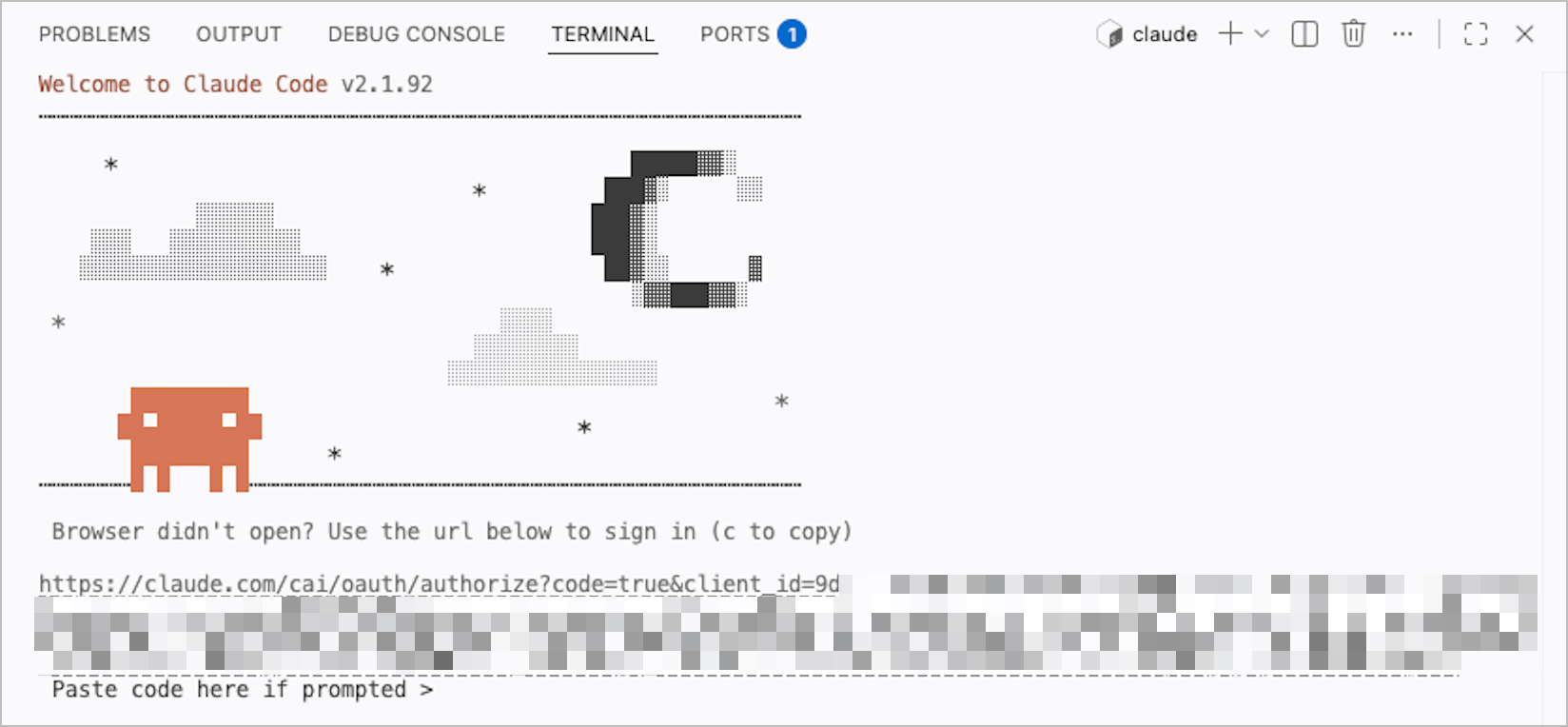
Navigate to the Claude OAuth URL shown to complete authentication. Copy the authentication link shown in the terminal and paste it into a web browser. Complete the sign-in flow and copy the authentication link provided. Return to the terminal in your cloud app and paste the link where it says "Paste code here if prompted."
Note
Currently, automatic browser authentication doesn't work in containerized environments. Also, Ctrl + click may open an incomplete URL since the authentication link can span multiple lines. Ensure you've copied the URL entirely. -
Verify Claude is running by entering a simple question.
claude "What directory am I in?"Claude should respond with information about your current working directory and you can start using it for coding tasks.
Use Gemini CLI
Gemini CLI is available in Workbench apps.
-
Open a terminal in your cloud app and run
geminito start Gemini. If it's your first time launching Gemini, start-up may take a while as it completes initial setup. -
On first launch, you'll be asked to authenticate. Follow the prompts in the terminal to sign in. You'll need one of the following:
-
A Google account that's linked to a Gemini subscription
-
Access to the Gemini API through a Google Cloud project
-
A Google account that's linked to Google Cloud's Vertex AI
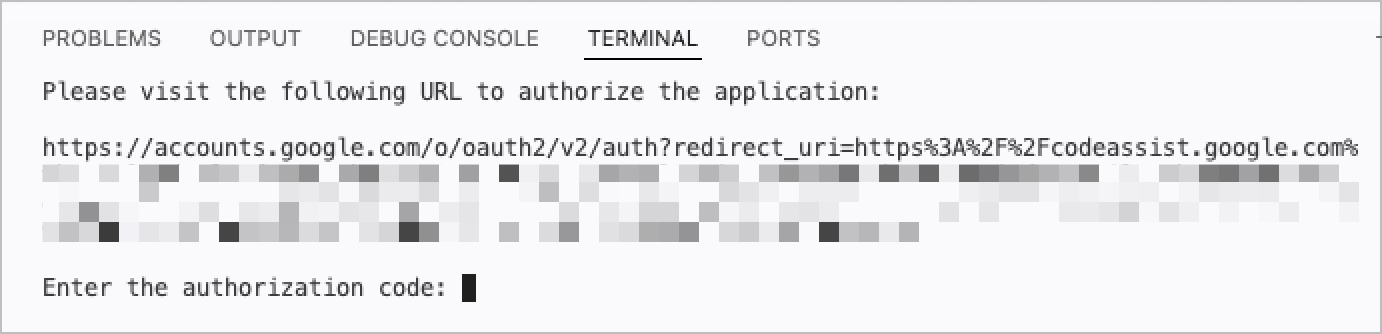
Navigate to the Google OAuth URL shown to complete authentication. -
-
Run
geminito verify Gemini CLI is working. You should see the Gemini CLI prompt and can start using it for coding tasks.
Note
The terminal may become unresponsive after you complete the initial Gemini CLI setup. If this happens, open a new terminal window/tab and Gemini CLI should work.Last Modified: 7 April 2026