Create batch jobs
Categories:
Prior reading: Use the Cromwell engine to run WDL workflows, Run WDL workflows on AWS workspaces
Purpose: This document provides detailed instructions for creating, running, and monitoring WDL workflow batch jobs.
Introduction
In addition to single-job workflows, Verily Workbench supports WDL workflow batch jobs via the Workbench web UI and the Workbench CLI.
- GCP workspaces: Batch jobs run on the Cromwell engine
- AWS workspaces: Batch jobs run on AWS HealthOmics
Terminology
The following concepts are important to understand when it comes to running workflows:
A batch job refers to a single workflow that is launched many times in parallel with different inputs. It's orchestrated through Workbench.
A job is a general term that describes a unit of work or execution in computing. Within Verily Workbench, a job refers to a running instance of a workflow. It takes in the workflow configuration (the WDL file(s)) and a key-value pair input. Additional input options are available to define how the job is executed.
A task refers to a stage or activity executed within a workflow. Multi-stage workflows are divided into a series of tasks, while a single-stage workflow is one task itself. In Cromwell, tasks are referred to as sub-workflows.
Create a workflow and run a batch job
Prerequisites
If you're using the Workbench CLI to run batch jobs, run wb version to confirm you're
running at least version 0.422.99. Set your workspace to the one you want to use for your workflow
by running wb workspace set --id=<workspace-name>.
Create a workflow
See Add workflows for step-by-step instructions.
Run the following, replacing the values in <>. Note that Git
repositories aren't currently supported as repos:
wb workflow create \
--bucket-id=<bucket-id>\
--path=<path/to/your/main.wdl> \
--workflow=<workflow-name>
Note
You can see all of your workflows on the Workflows tab in the Workbench web UI or by runningwb workflow list.
Run a batch job
Be aware
For GCP workspaces, Cromwell submission limits apply to each individual job in your batch. Before accepting the batch, Workbench counts each selected CSV record as one requested job, excluding the header. If you select only part of the CSV, only those records count. A quoted value spanning multiple lines is still part of one record. Records count toward this submission check even if input validation later skips them.
If the batch exceeds an available allowance, the entire submission is rejected and no jobs from the batch are started. Reduce the selection to fit the remaining allowance shown in the error, or wait for capacity before submitting again.
File formatting
For batch jobs, you'll need to provide an input table in a CSV file. The CSV should follow a format like this:
name,last_name,location,age,is_hobbit,height,friends,counts
Bilbo,Baggins,Bag End,85,TRUE,4,"[""Dex"", ""Dan""]","{""count1"":1,""count2"":2}"
Frodo,Baggins,Bag End,30,TRUE,4.3,"[""Sam""]","{""count1"":1}"
,,,,,
Sam,Gamgee,Hobbiton,31,TRUE,4.2,"[""Frodo""]","{}"
Gandalf,none,none,188,FALSE,6.1,"[""Frodo"", ""Sam""]","{""count1"":100}"
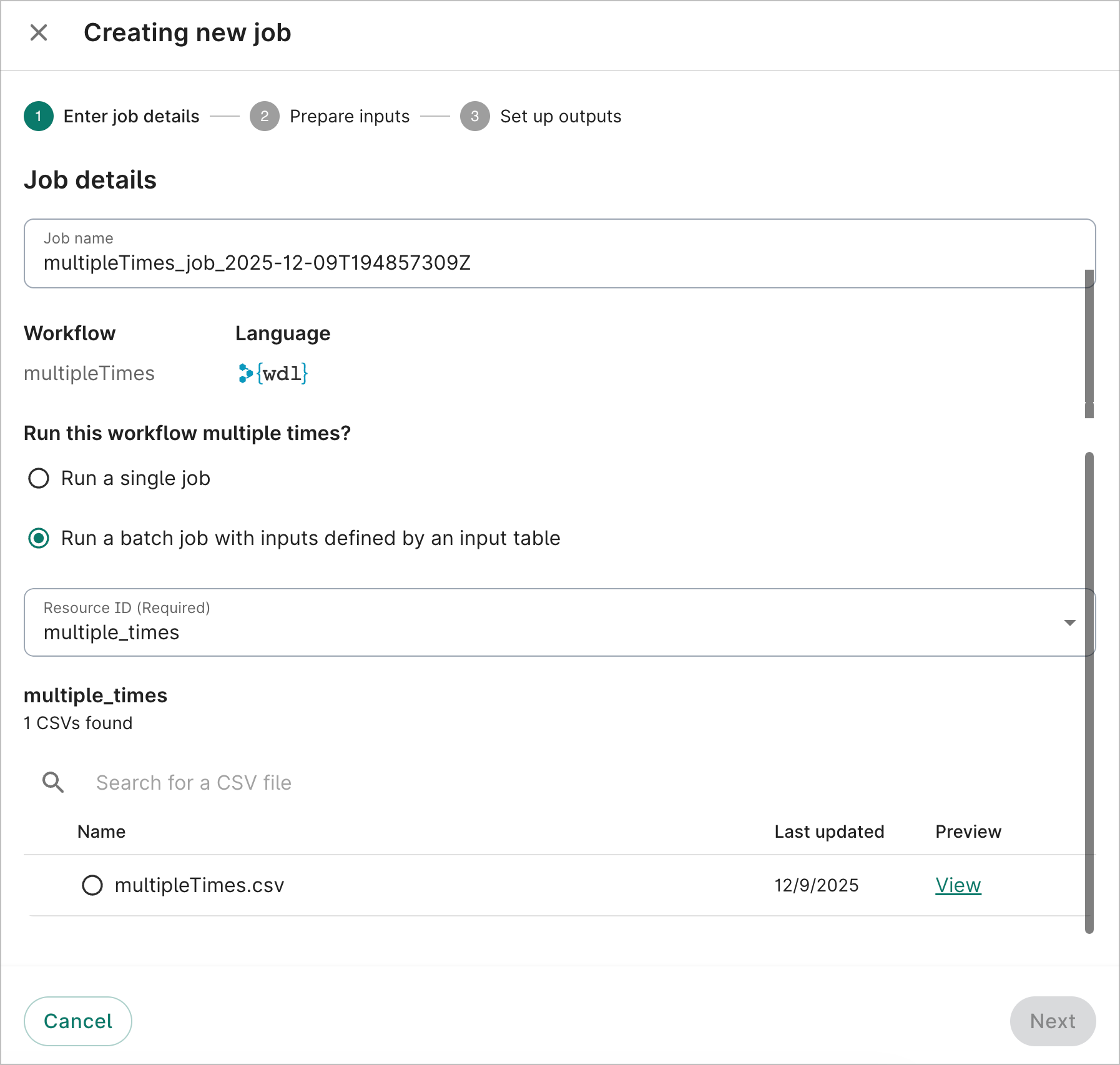
1. On the Setup sub-tab in Workflows, select a workflow and click + New job. A Creating new job dialog will open.
2. On the Enter job details step, select Run a batch job with inputs defined by an input table. From the dropdown, select the bucket where your CSV inputs file lives, and then select the specific CSV file. Click Next.
Note
Only the first 1,000 files in a bucket will be listed. If you have trouble locating the input file you'd like to use, you can search for it by its file name. You'll need to include the beginning of the file path, e.g., for a WDL file atfoo/bar/workflow.wdl, you can search for foo/ba but not workflow.wdl.

Note
Workbench does not currently support setting a default value for an input key. If an input key is always the same, we suggest setting a default value in the WDL definition so that you don't need to have a CSV column for a constant field.
   workflow my_workflow {
     input {
       String my_input = "default_string_value"
       Int my_int_input = 10
     }
     # ... rest of the workflow
   }
   {
     "multipleTimes.name": "name",
     "multipleTimes.last_name": "last_name",
     "multipleTimes.location": "location",
     "multipleTimes.age": "age",
     "multipleTimes.is_hobbit": "is_hobbit",
     "multipleTimes.height": "height",
     "multipleTimes.friends": "friends",
     "multipleTimes.counts": "counts"
   }
When you've mapped the input keys to column names, click Next.
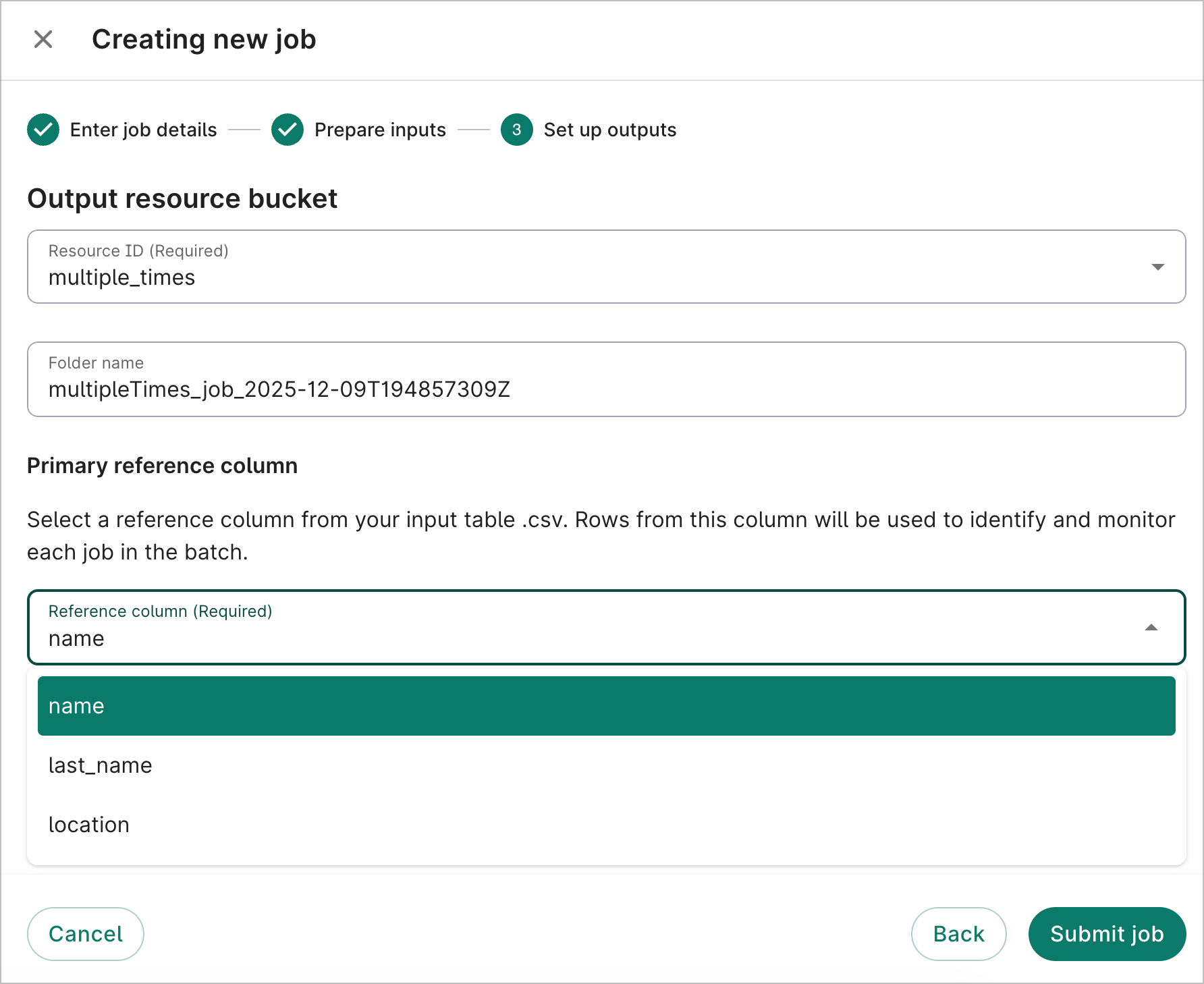
4. On the Set up outputs step, select the bucket where your outputs should go. You also need to pick which column name should be used for the primary reference column; the reference column is how each job will be identified in the Individual jobs table. Click Submit job.
The following example command runs six jobs. All options are required except for output-path. If
output-path isn't defined, it will use a value of the job display name + job + a timestamp:
wb workflow job run \
--workflow=cram-to-bam \
--output-bucket-id=example_wdl_output \
--output-path=example-workflow-execution \
--batch-input-bucket-id=workflows-testing-folder \
--batch-input-csv-path=1000genomes_6_high_cov_cram_to_bam.csv \
--column-mapping-uri=gs://workflows-testing-folder-vwb-xxx-xxxxxx-xxxxx-1234/cram-to-bam-columns.json
Last Modified: 17 September 2026