Find existing data collections
Categories:
Purpose: This document explains how you can find data collections to use in your workspaces.
Introduction
With the Data Exchange in Verily Workbench, users can search for published data collections that they can add to a workspace for further analysis.
Note
A user's access level will determine what actions they can take with a given data collection. See Data collection roles and access for more details.Video tutorial
Learn how to discover data collections by watching the video below.
Discover new data collections
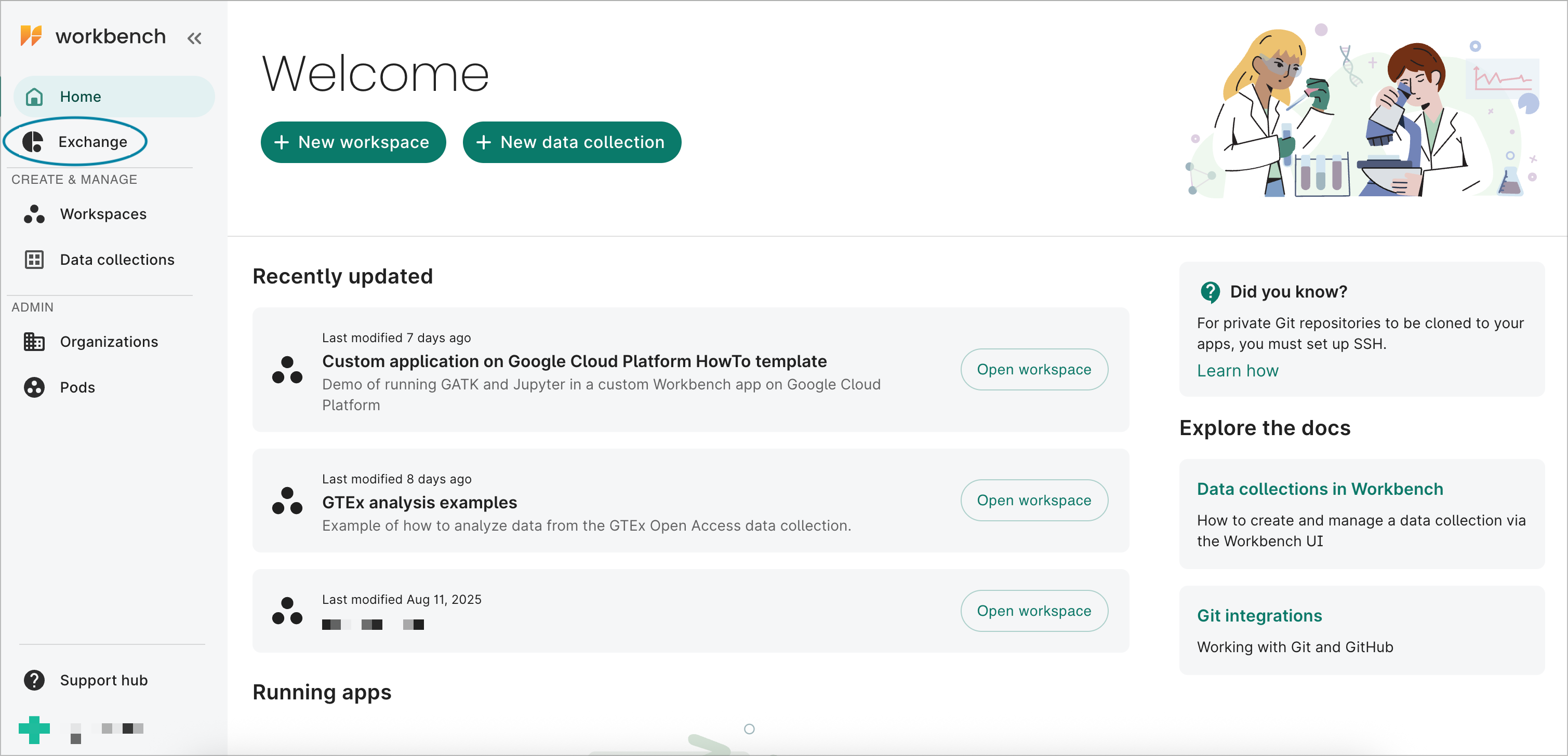
Select Exchange in the left sidebar to navigate to the Data Exchange page.
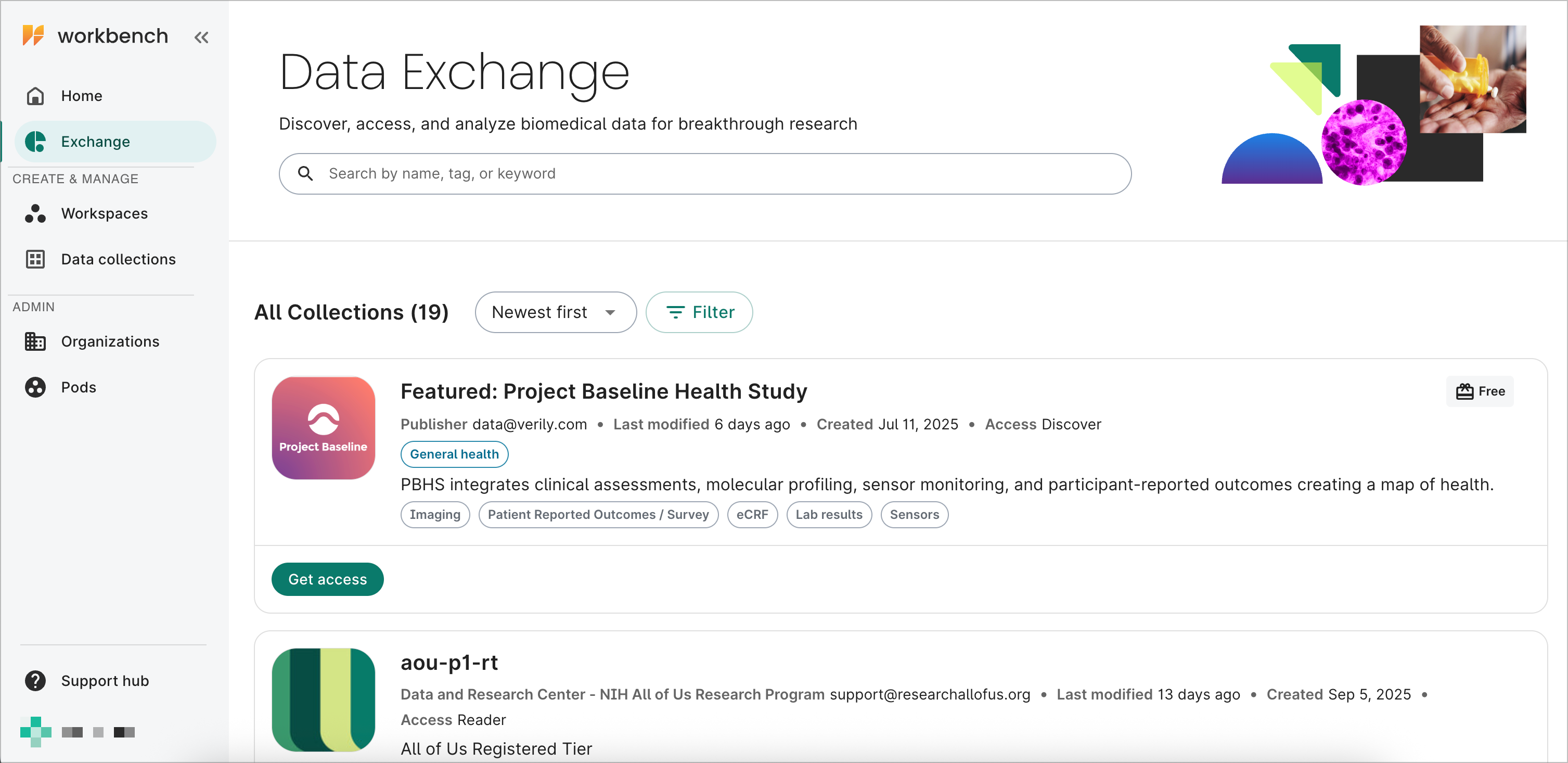
You'll see a list of data collections where you have Discover, Reader, Writer, or Owner access. This includes data collections that have a group policy with a group or organization you belong to.
Filter search results
There are two ways to filter search results:
Filter by search term
Search terms will match any of the following fields:
- Name
- Description
- Therapeutic area tags
- Data modality tags
- Publisher name
- Publisher email
- Created date (month, date, or year)
- Last modified date (month, date, or year)
Filter by metadata tags
Data collection metadata tags include therapeutic areas tags, update frequency, and data modality tags.
To the right of the search, select the Filter button. A modal will open. Select any fields you'd like to filter by.
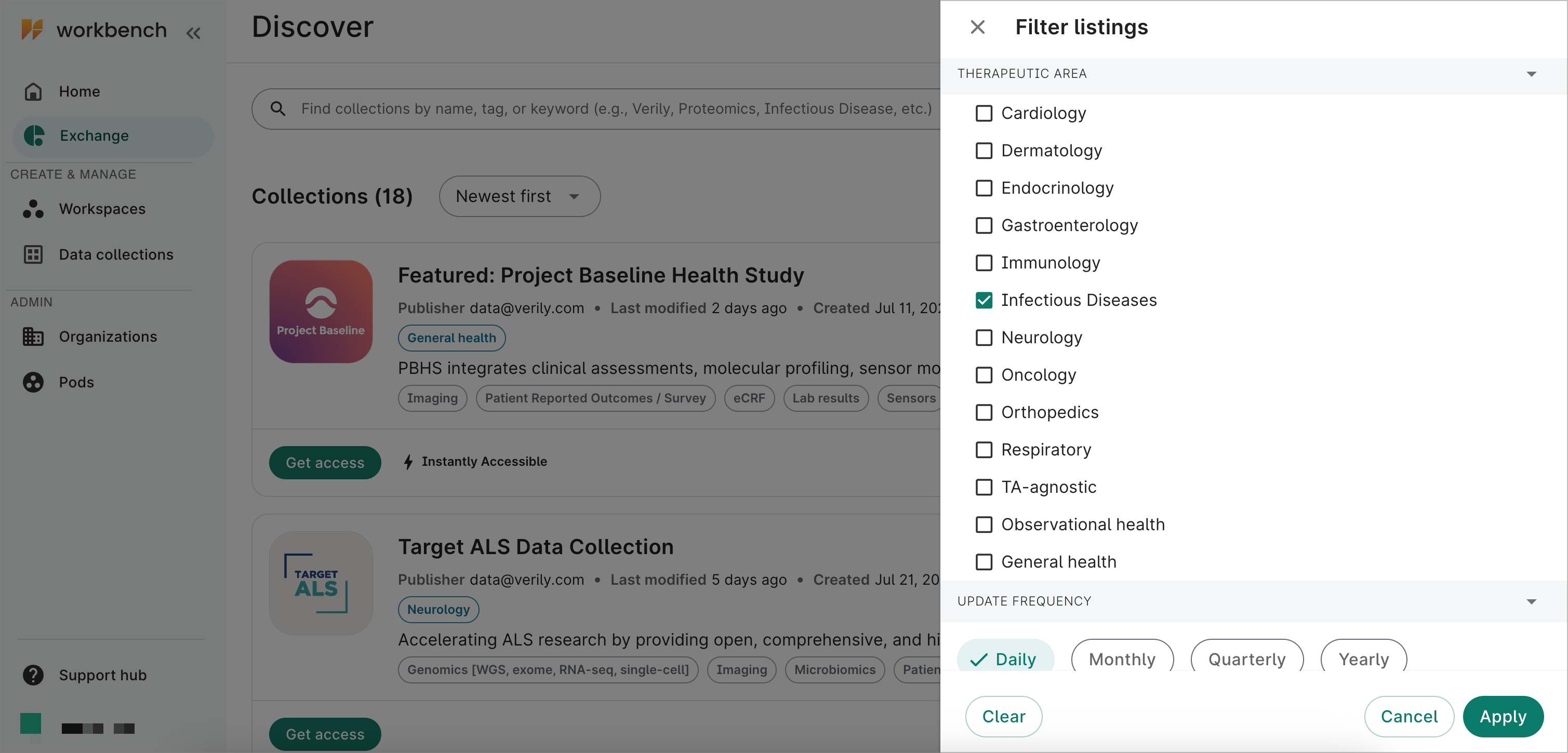
When you select multiple fields, each result will include all of the fields. For example, if you select Infectious Diseases and Daily, then all results will include the therapeutic tag Infectious Diseases and an update frequency of Daily.
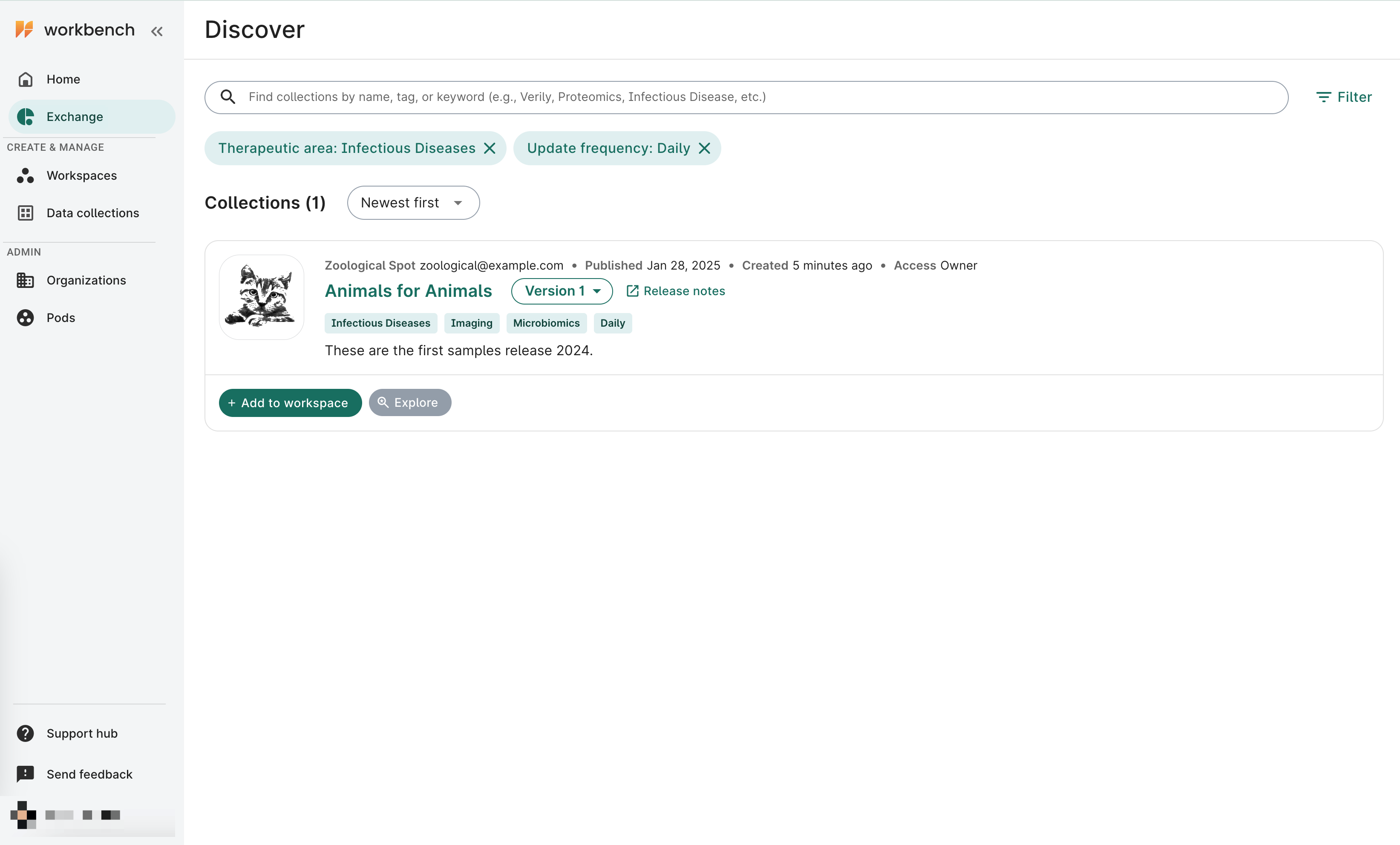
Select a data collection's name to see more information. Every user will have access to the collection's Overview tab. Depending on your access level, you may be able to view other tabs.
| Discover | Reader | Writer | Owner | |
|---|---|---|---|---|
| Overview tab | Yes | Yes | Yes | Yes |
| Data snapshot tab | Yes* | Yes* | Yes* | Yes |
| Data dictionary tab | Yes* | Yes* | Yes* | Yes |
| Usage examples tab | Yes* | Yes * | Yes* | Yes |
| Versions tab | No | Yes | Yes | Yes |
| Policies tab | No | Yes | Yes | Yes |
| Access tab | No | Yes** | Yes** | Yes |
* Tab will be visible only if there is content
** Tab will be visible but cannot be interacted with
Add data to your workspace
If you only have Discover access, you won't have access to the data and will need to request access via the Get access button.

If you have Reader, Writer, or Owner access, you'll be able to view the data collection's data and add it to your workspace. Select + Add to workspace and complete the steps to add the data to a workspace.
Access data collections automatically
Some data collections allow near-instantaneous access. These collections will be indicated by an Instantly Accessible label.
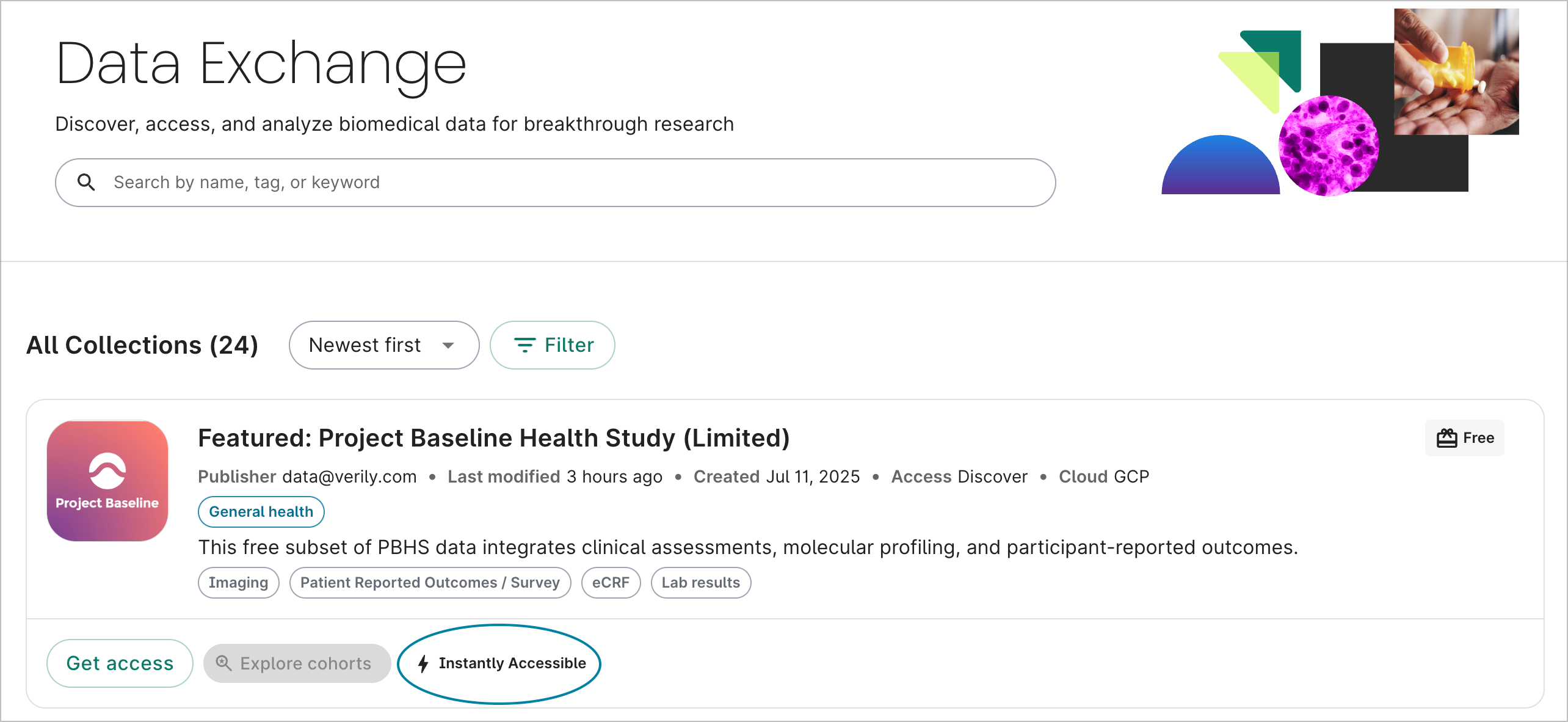
To start, click the Get access button. A dialog will appear asking you to acknowledge the data use agreement.
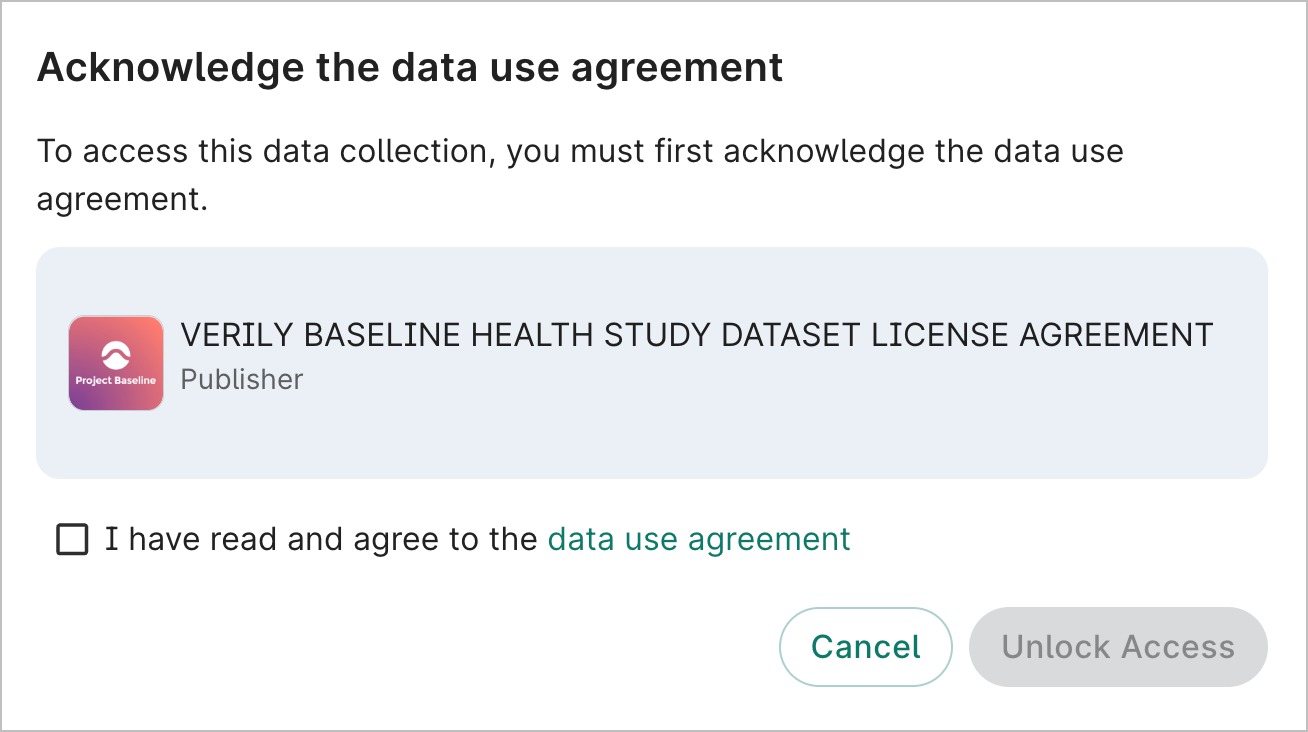
Click data use agreement to review the agreement. Tick the checkbox if you agree and click Unlock Access. You'll then be taken to the data collection's Overview page where you can select the Analyze button to explore cohorts and add the collection to a workspace. For details on cohorts in Exchange, see the Step-by-step guide for creating a cohort via the Data Exchange.
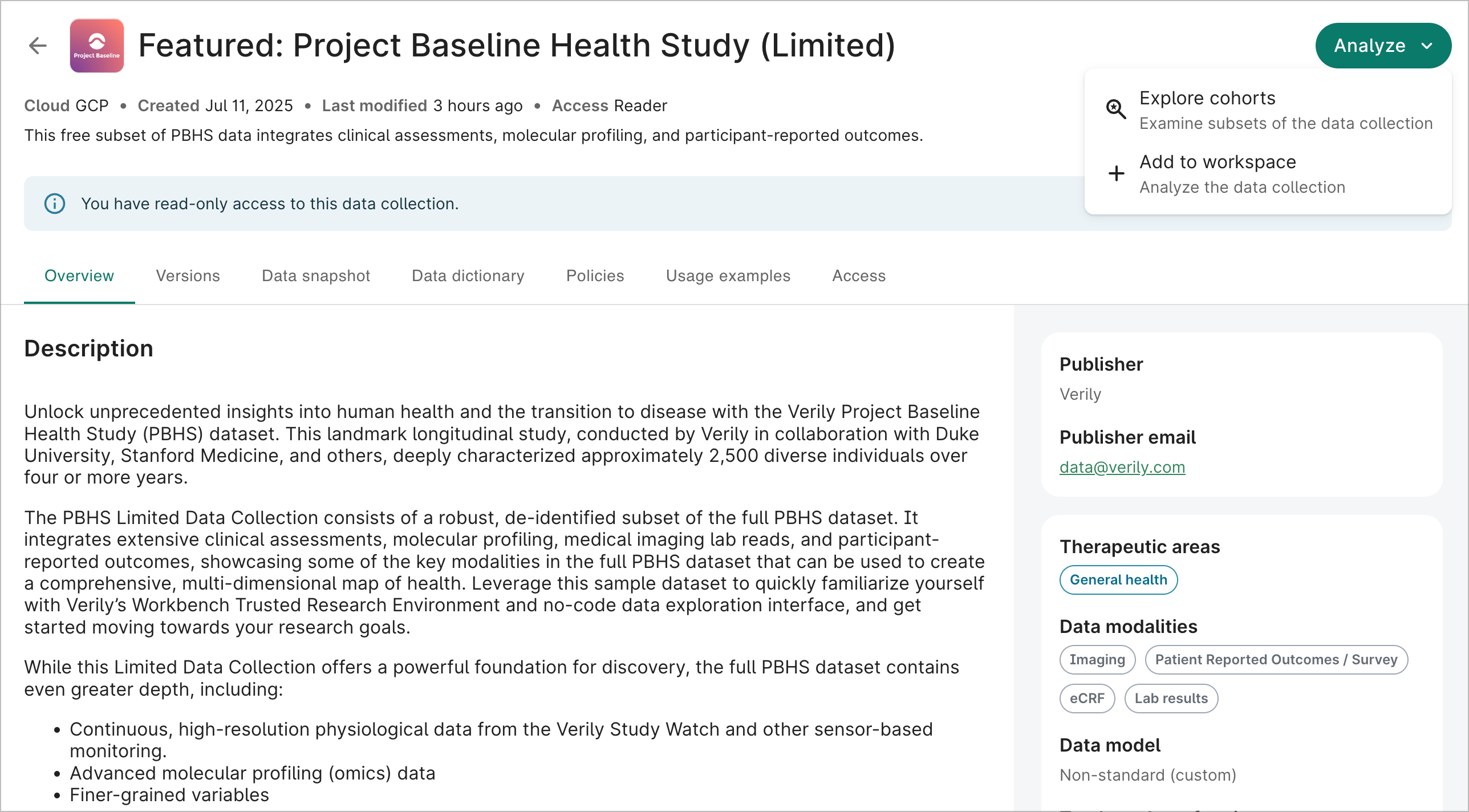
Users granted instant access to a data collection will be given Reader access.
If you have accepted the agreement but don't see the Analyze button or have Reader access, please contact the data collection owner.
Frequently asked questions
I can't find a data collection I know exists
You must have Discover, Reader, Writer, or Owner access for a data collection to appear in the Exchange search results.
I can't request access to a data collection
If the Get access button is disabled, then the owner of this data collection did not list any contact details. Therefore, it's not possible to request access to the data collection.
If you don't see a Get access button, then you already have Reader, Writer, or Owner access.
I cannot see the data collection's data or versions
If you only have Discover access, you cannot see the versions. Refer to the Access field to confirm your level of access.

Otherwise, it's possible the data collection doesn't have any versions, or any published versions. To confirm, select the data collection and navigate to the Versions tab. If the Version select tool says Draft, then there are no published versions and you cannot add this data to your workspace.
How do I ensure my data collection appears in Exchange search results?
See Make your data collection discoverable for details.
Last Modified: 26 February 2026