Activity logs for data collections in Workbench
Categories:
Prior reading: Data collections overview
Purpose: This document explains what activity logs are and how you can use them to gain insight about your data collections.
Note: This article is relevant to Workbench users working with Google Cloud Platform-backed data collections.
Introduction
Verily Workbench activity logs are time-stamped logs that can associate a user ID, org ID, operation taken (e.g., create, clone, delete, update access), and Workbench object (e.g., workspace, data collection, storage resource, VM, Dataproc cluster).
These logs are useful for data collection owners to measure the impact of their data collections. With these logs, owners can write SQL queries to pull results that answer queries such as the following:
- How many users have cloned this data collection?
- What orgs are these users from?
- How many workspaces reference this data collection?
- What resources in the data collection have been most frequently cloned?
Access the activity logs
Activity logs are accessible at the data collection and organization level.
For data collections, data collection owners (not writers or readers) will see a link to these logs, stored in BigQuery, from the individual data collection page:
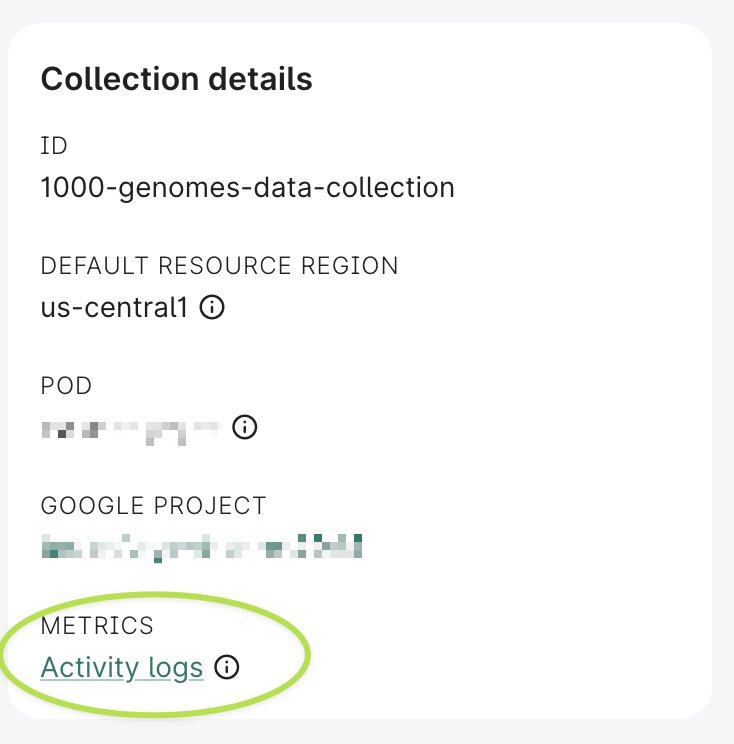
Click the Activity logs link to open these logs in the BigQuery UI. The logs are stored in BigQuery tables that are separated by data collection ID.
Using BigQuery, data collection owners can review the schema and directly query the tables via SQL, save query results or open them in Google Sheets, and more.
Understand table naming with data collection ID suffix
Each table in the activity logs dataset is separated by data collection ID using a table suffix. The
table naming pattern is <table_name>_<data_collection_id>, where the data collection ID is the
user-facing ID of your data collection with hyphens converted to underscores.
For example, if your data collection user-facing ID is my-data-collection, the relevant
data_collection_activity_clone_logs table would be named:
`workbench-bq-log-sink.workbench_monitoring_data_collection_logs_prod.data_collection_activity_clone_logs_my_data_collection`
You can find your data collection's user-facing ID in the URL when viewing your data collection:
https://workbench.verily.com/data-collections/{your-data-collection-user-facing-id}
If you're an owner of multiple data collections, you'll need to query each data collection's table separately.
Note
If you're having issues running SQL queries from any Workbench GCP project, please contact workbench-support@verily.com as we may need to allowlist your email domain. If the data collection you're in disallows you from running BigQuery, you can also run the query in your personal GCP project. Alternatively, as a workaround, you can run your queries from a Workbench notebook app, as described below.Be aware
Preview or browsing is not available for these datasets because data is isolated into separate tables per data collection. However, you can achieve the same by running a query on your specific data collection's table:
SELECT * FROM `workbench-bq-log-sink.workbench_monitoring_data_collection_logs_prod.data_collection_activity_clone_logs_<data_collection_id>` LIMIT 10
Schema of the activity logs tables
The information below shows the schema of the
data_collection_activity_clone_logs_<data_collection_id> tables.
| Field name | Type | Definition |
|---|---|---|
| data_collection_id | STRING | Universally unique identifier (UUID) for data collection |
| data_collection_user_facing_id | STRING | Human readable, user-facing ID for data collection |
| data_collection_org_id | STRING | UUID for org data collection belongs to |
| data_collection_org_user_facing_id | STRING | User-facing ID for org data collection belongs to |
| data_collection_pod_id | STRING | UUID for pod data collection belongs to |
| data_collection_pod_user_facing_id | STRING | User-facing ID for pod data collection belongs to |
| workspace_id | STRING | UUID of destination workspace that data collection was cloned to |
| org_id | STRING | UUID for org of destination workspace |
| org_user_facing_id | STRING | User-facing ID for org of destination workspace |
| pod_id | STRING | UUID of pod of destination workspace |
| change_date | TIMESTAMP | Timestamp of clone event |
| user_id | STRING | UUID of user who cloned data collection |
| change_subject_id | STRING | UUID of specific resource in data collection cloned |
| change_subject_type | STRING | Type of resource cloned - referenced/controlled GCS bucket / BigQuery / AWS S3 folder |
| change_type | STRING | Type of action taken on subject. This is always CLONE for data collection logs |
Query the activity logs table
Note
For all of the queries below, replace<data_collection_id>
with the UUID of your data collection, with hyphens converted to underscores.
BigQuery UI
You can query the activity logs table directly from the BigQuery panel in the Google Cloud console, reached by clicking the Activity logs link from a data collection that you own.
Run queries from a Workbench app
You can also query the table from within a Workbench app, using the bigquery library, e.g.,
by running something like the following:
import pandas as pd
from google.cloud import bigquery

BQ_dataset = 'workbench-bq-log-sink.workbench_monitoring_data_collection_logs_prod'

job_query_config = bigquery.QueryJobConfig(default_dataset=BQ_dataset)
client = bigquery.Client(default_query_job_config=job_query_config)
Next, define a query on the table:
query = """
SELECT DISTINCT(workspace_id), org_user_facing_id, change_date
FROM `data_collection_activity_clone_logs_<data_collection_id>`
ORDER BY change_date DESC
"""
Then, run the query and view a dataframe of the results:
df = client.query(query).result().to_dataframe()
df
Query on a specific data collection
Each data collection has its own table. To query a specific data collection, use the table name that includes your data collection's UUID (with hyphens converted to underscores).
Example query
"Who is importing my data collection?"
SELECT DISTINCT(workspace_id), org_user_facing_id, change_date
FROM `workbench-bq-log-sink.workbench_monitoring_data_collection_logs_prod.data_collection_activity_clone_logs_<data_collection_id>`
ORDER BY change_date DESC
Frequently asked questions
Q: The change_type field is CLONE. Why is this? Are my data collection resources being
duplicated?
A: No, data collection cloud resources are not duplicated. They're created as referenced resources in the workspace. The workspace will inherit the policy of the data collection.
Last Modified: 23 December 2025